Help & Documentation
Everything you need to know to get the most out of LogLens.
Introduction
LogLens is a real-time web analytics and security monitoring platform. Unlike traditional analytics tools that rely on JavaScript tracking, LogLens analyzes your server logs to provide accurate, privacy-friendly insights into your website traffic.
What makes LogLens different?
- Server-side analytics — Captures all requests, including those from bots, scrapers, and users with ad blockers
- Near real-time monitoring — Requests stream in as they happen and reports refresh in fifteen-minute batches
- Bot detection & verification — Automatically identifies bots and verifies legitimate crawlers against their official IP ranges
- IP address analysis — Deep dive into individual IPs and IP ranges to identify patterns
- Smart alerts — Get notified instantly when traffic anomalies, errors, or suspicious bot activity occur
- Privacy focused — No cookies, no personal data collection, GDPR compliant by design
- Data export — Export any data table to CSV for further analysis
- Native integrations — First-class support for AWS CloudFront, Cloudflare, Vercel, Netlify (Enterprise log drains), Kinsta managed WordPress (via the Kinsta API), Shopify (via a free Cloudflare zone), and self-hosted Apache / Nginx (via the open-source Vector agent)
- Programmatic access — A public API, a CLI with a bundled agent skill, and an MCP server for AI assistants cover many reports and a limited set of actions. Some app features, such as website setup, feedback and incident snoozing, are only in the app
Quick Start Guide
Get up and running with LogLens in just a few minutes.
Step 1: Create an Account
Sign up at app.loglens.ai using your email address. You'll automatically be set up with a personal organization.
Step 2: Add Your Website
From the dashboard, click on the website selector and choose "Add Website". Enter your domain name and a friendly name for your site.
Step 3: Connect Your Logs
You have several options to send logs to LogLens:
- AWS CloudFront — Use real-time logs with Kinesis Firehose (recommended for AWS users)
- Cloudflare — Deploy the LogLens Worker on your hostnames with each route set to Failure mode: Fail open; Workers Free covers 100,000 requests a day per account, Workers Paid ($5/month, 10 million requests) removes the cap
- Vercel — Use Vercel Drains for instant setup (recommended for Vercel users)
- Apache / Nginx — Install the open-source Vector agent on your server to tail the access log (10-minute setup)
- Kinsta — Paste a MyKinsta API key and we pull your access logs every 15 minutes via the official Kinsta API (no agents, no DNS changes)
- Shopify — Front your store with a free Cloudflare zone (Orange-to-Orange) and deploy the LogLens Worker — real-time storefront logs on any Shopify plan
- Import — Upload historical log files directly
Step 4: Add Optional Sources
After the log step, setup offers Google Search Console, Google Analytics and a first site crawl. Each is optional and can be skipped and done later. robots.txt and sitemap checks run automatically when the website is added. See Website setup for what each one adds.
Step 5: Configure Alerts
Navigate to the Alerts page to set up monitoring for traffic anomalies, error spikes, and suspicious bot activity. LogLens learns a baseline from your own traffic; while it is young, only large deviations trigger alerts.
Step 6: View Your Analytics
Once logs start flowing, your dashboard will populate with real-time data. It typically takes 1-2 minutes for the first data to appear. The Website setup strip above the traffic graph shows what is complete and what still needs attention.
The Live status badge in the header shows whether log data is arriving for the selected site.
Website setupNEW
Log collection comes first: it is the one step every report needs. Once a log source is set up, onboarding offers optional steps for Google Search Console, Google Analytics and a first site crawl. Each is marked Optional and can be skipped or done later. Automatic robots.txt and sitemap checks start when you add a website, so there is nothing to set up for those.
What each source adds
| Step | What it adds |
|---|---|
| Logs | Every request your site served: traffic, bots and AI crawlers, status codes, alerts and Site Checks. Required. |
| Google Search Console | Search impressions, clicks and queries, plus stored Google inspection results for your pages. Recommended for search work. |
| Google Analytics | Sessions, engagement, key events and revenue next to your logs, including the share of human visits GA did not measure. Recommended. |
| Sitemap | The URL inventory behind Sitemap Coverage and sitemap membership on URL detail. Checked automatically. |
| Robots.txt | Your crawler rules, for the Robots.txt report and violation counts. Checked automatically; the file itself is optional. |
| First site crawl | Page, link and indexability evidence that logs cannot show, for Crawl Join, Crawl Audit and Link Map. Optional; a crawl starts only when you ask for one. |
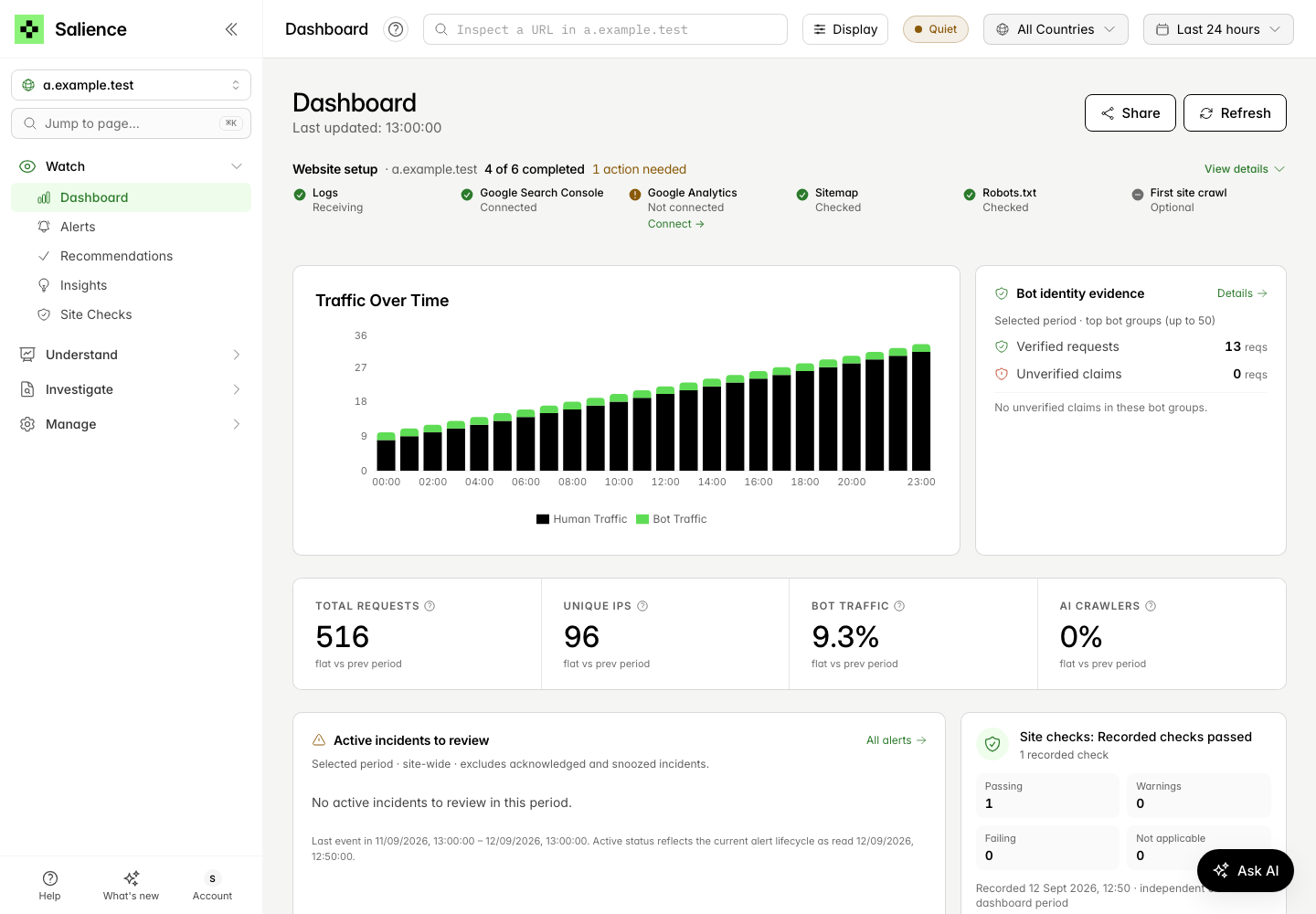
The setup strip
The dashboard shows a compact Website setup strip for the selected site with six statuses: Logs, Google Search Console, Google Analytics, Sitemap, Robots.txt and First site crawl (Site crawl once one has run). Two counts sit beside the heading and mean different things:
- X of 6 completed — steps with confirmed evidence: logs received, a connected property, a completed sitemap or robots.txt check, or a completed crawl.
- N actions needed — only steps where you can do something or a check failed, such as Not connected, No recent data confirmed, Check failed, Check blocked or Saved results missing. It is hidden when nothing needs action.
Optional and unconfirmed steps are neutral. A first crawl that has not been started shows Optional, a site without robots.txt shows No file found (optional), and a status we could not read shows Status unavailable; none of these count as completed or as an action. Automatic check pending and In progress mean work is still running. Search Console and Analytics are encouraged: while they are not connected they count as actions and show a Connect link, but you can leave them unconnected.
Details and settings links
Select View details (or the strip itself) to expand it, and Hide details to collapse it. The choice is remembered for that site in your browser. The details give each step’s dates and results, with a link to where you act on it:
- Review log setup — the log setup instructions in Website Settings → API Keys
- Connect or Review connection — the Search Console or Google Analytics card in Website Settings → Integrations
- Review sitemap and Review robots.txt — the Sitemap Coverage and Robots.txt reports
- Set up a crawl or Review site crawl — the Site Crawler, where you review settings before anything starts
When a sitemap or robots.txt check failed or has no confirmed result, Retry automatic checks (or Run automatic checks) queues a new check. Queued is not the same as done: use Refresh setup status shortly afterwards to see the result. See Sitemap and robots.txt checks for what the results mean.
Connected is not the same as synced
- Logs: Receiving means log records (stored, filtered or imported) were counted for this site in the last 30 days. The details show the latest recorded log date, which can be earlier than today. No recent data confirmed means none were confirmed in that window; on its own it does not mean the integration is disconnected.
- Search Console or Analytics: Connected means a property is selected and the connection is available. It does not prove the latest sync succeeded, so check the Last sync date in the details. Signing in with Google connects nothing until you choose a property. A recorded connection problem shows Needs attention.
- Sitemap: Checked means the last automatic fetch completed. On the Free plan the check confirms availability only and shows Basic check only; full coverage needs a paid plan.
Keeping the status current
Setup status is read when the dashboard opens and whenever you choose Refresh setup status, so returning to the dashboard after connecting a property shows the new state. If you finished something in another tab, refresh. The status ignores the selected dates, and reading it never starts a check or a crawl.
Finding your way aroundNEW
There are two navigation modes. Expert is the default and lists every report, grouped by job. Standard is a simpler menu. Switch between them from Display in the header, under Navigation; the choice is remembered for your account in this browser. Menu paths in this help centre use the Expert names.
Expert navigation
| Group | Sections and pages |
|---|---|
| Watch | Dashboard, Alerts, Recommendations, Insights and Site Checks |
| Understand | AI & bots (Bots & Crawlers, AI Crawlers, AI Landing Pages, Robots.txt), Search (SEO Overview, Sitemap Coverage, Google Index, Search Performance, Inspection Tool, Page Importance, Crawl Budget) and Traffic (Traffic, Referrers, Google Analytics, Geography, Devices, IP Addresses) |
| Investigate | Pages (URL Lookup, Paths, Site Sections, Path Explorer, Path Trends, URL Patterns, Segments), Status & responses (Status Codes, Status Consistency, Redirects, Soft 404s, Response Times), Logs (Log Explorer) and Crawl (Site Crawler, Crawl Upload, Crawl Join, Crawl Audit, Link Map) |
| Manage | Reports & data (SEO Report, Downloads, Import Logs) and Settings (Website Settings, Organization, Connect your tools) |
One group is open at a time. The group and section for the page you are on open automatically, and each section collapses on its own. Collapse the sidebar to an icon rail and each group opens as a flyout. Jump to page (⌘K or Ctrl K) searches every destination by name. The dock at the bottom has Help, What’s new and your Account.
Standard navigation and Explore
Standard shows a shorter menu, and every report is still available through Explore. Explore has starting points (search crawlers, page errors, AI crawler activity and looking up one page), a searchable list of all reports and tools, links for connecting your own tools, and an Ask AI box. Ask AI opens a draft for you to edit; nothing is sent, and no AI usage applies, until you choose Send. In Standard, the dashboard also offers Explore your logs and Ask AI links.
Inspect a URL versus Jump to page
- Inspect a URL, in the header, looks up one page on the selected website and opens its URL detail. Type a path or paste a full URL.
- Jump to page and the Explore search find reports by name or topic, such as “robots” or “exports”. They do not search your site’s URLs.
Older emails or notes may refer to Analytics, SEO or Search menus. Those reports are now under Understand (traffic, search, AI and bots), Investigate (pages, status codes, logs and crawls), Watch (Site Checks) and Manage (reports and settings).
Sending feedbackNEW
Use Send feedback to report a problem or suggest an improvement from inside the app. In Expert navigation it is in the Help and Account menus at the bottom of the sidebar; in Standard navigation and the mobile menu it is in the Help section. It is not available in the demo.
What you send
- Type (optional) — Bug, Idea, Other or Not specified
- Message — what happened, or what would help (up to 5,000 characters)
- Context — the dialog shows the site, the page (its title and path, without query parameters) and, where the page has one, the selected period. These are sent with your message, along with the app version. Select a website before sending.
No screenshot or screen recording is captured; only your message and the context shown in the dialog are sent.
Drafts, retries and confirmation
- A draft stays with the page you started it on. If you move to another page before sending, the dialog says so and offers Use this page instead.
- Your feedback is saved when the dialog says “Your feedback was saved as ticket …”.
- If the connection drops or the service does not give a clear answer, the dialog says it could not confirm whether your feedback was saved. Retry sends the same message again without creating a duplicate. Edit as a new message lets you change it, but creates a second ticket if the first one was saved.
- If the message was refused, for example because too many were sent recently, it was not sent and you can edit it and try again.
For other help, ask the AI Helper to hand you over to a person, or contact us.
Key Concepts
Requests vs Visitors
LogLens tracks requests, not unique visitors. A single page load typically generates multiple requests (HTML, CSS, JS, images). This gives you a more complete picture of server load and resource usage.
Human vs Bot Traffic
LogLens automatically classifies traffic as either human or bot based on user agent analysis. Bot traffic is further categorized into:
- Search engines — Google, Bing, etc.
- Social media — Facebook, Twitter, LinkedIn crawlers
- AI crawlers — GPTBot, ClaudeBot, etc.
- Monitoring — Uptime monitors, health checks
- SEO tools — Ahrefs, SEMrush, etc.
- Scrapers — Generic or malicious bots
Verified vs Unverified Bots
Many bots claim to be legitimate crawlers (like Googlebot) but are actually impersonators. LogLens verifies bots by checking if their IP address matches the official IP ranges published by Google, Microsoft, OpenAI, and other major bot operators.
- Verified — IP matches official published ranges
- Unverified — Claims to be a known bot but IP doesn't match
Time Periods
All analytics can be filtered by time period. Available options include:
- Last hour, 6 hours, 24 hours
- Last 7 days, 30 days, 90 days
- Last year
- Custom date range
Some pages and sources keep their own dates instead; see Time Filters.
Dashboard Overview
The dashboard (Watch → Dashboard) summarises the selected site. The compact Website setup strip sits under the heading so the traffic graph stays prominent, with room below for classification, Site Checks, site health and insights.
Key Metrics
| Metric | Description |
|---|---|
| Total Requests | All HTTP requests received in the selected time period |
| Unique IPs | Number of distinct IP addresses that made requests |
| Bot Traffic | Share of requests identified as coming from automated bots |
| AI Crawlers | Share of requests from AI crawlers, including training crawlers |
Dashboard Widgets
The dashboard includes several widgets:
- Website setup — Six setup statuses with a completed count and, separately, any actions needed (see Website setup)
- Traffic Over Time — Human and bot requests per time interval for the selected period
- Bot identity evidence — Verified requests and unverified claims for the top bot groups in the selected period
- Headline tiles — Total requests, unique IPs, bot traffic and AI crawler share, each compared with the previous period
- Active incidents to review — Site-wide incidents in the selected period, excluding acknowledged and snoozed ones (see Alert History)
- Site Checks — A compact summary of current Site Checks verdicts, with its own recorded date
- Traffic Classification — How requests split between humans and bots
- Site health — Current health metrics and whether their alert baseline is established
- Insights — AI-generated findings for the dashboard (see AI Insights)
The site health panel says whether its baseline is still being learned: learning baseline, baseline still maturing or baseline established. When the site’s baseline is established but some metrics do not have one yet, it says how many do, for example baseline established for 3 of 5 metrics. Its alert badge counts unacknowledged alert records from the last 30 days, whatever dates are selected.
Time Filters
Use the date picker at the top of a report to change the period. The selection carries across reports that use shared dates.
Preset Periods
Last hour, 6 hours, 24 hours, 7 days, 30 days, 90 days and last year. Choosing a preset applies it straight away.
Custom Date Range
- Open the picker. Under Custom range, click a start day and then an end day on the calendar (clicking a day before the start begins again), or type dates (YYYY-MM-DD) and times (HH:MM).
- Choose Apply date range. Nothing changes, and no report reloads, until you apply. Cancel, or closing the picker, discards the draft.
Times are in your browser’s timezone, which the picker names (for example “Times in Europe/London”). The end must be after the start, and local times skipped when clocks go forward are rejected. Some tables label their own timezone, such as Log Explorer’s Time (UTC) and setup dates shown in UTC.
Pages with their own dates
Not every page follows the picker. It is hidden where a page shows stored results with their own dates, such as Page Importance, Google Index, Site Crawler, Import Logs, Downloads, Explore and Connect your tools. On Crawl Audit, Link Map and Segments the selected period applies to log activity only; crawl findings and segment definitions keep their own dates. Connected sources also lag: Search Console data is 2–3 days behind and Google Analytics about a day. Website setup status does not use the selected dates at all.
Shorter time periods provide more granular data (per-minute intervals), while longer periods show daily aggregates.
Country Filters
Filter your analytics by country to focus on specific geographic regions.
How to Use
- Click the "All Countries" dropdown in the header
- Select one or more countries from the list
- All analytics will update to show only traffic from selected countries
This is particularly useful for:
- Analyzing traffic from your target markets
- Identifying suspicious traffic from unexpected countries
- Comparing behavior across different regions
Live status badge
The pill in the header next to the country filter tells you whether log data is actually arriving for the selected site. It checks once a minute.
- Live (green) — events were received in the last 10 minutes.
- Quiet 40m (amber) — the feed has gone silent for more than 10 minutes but less than a day. Usually a deploy, a CDN change or a paused log drain; check the integration in Website Settings if it stays amber.
- No data 3d (grey) — nothing has arrived for over a day, or nothing has ever arrived. Hover the badge for the last event time and, where we can tell, the reason (for example a field-order misconfiguration on CloudFront).
Pages do not auto-refresh; use the Refresh button or change the time period to reload. The Log Explorer shows individual requests as they land.
Traffic Analysis
The Traffic page provides detailed analysis of your website requests.
Traffic Over Time
A stacked bar chart shows human traffic (cyan) and bot traffic (amber) over time. Hover over any bar to see exact counts for that time period.
Status Code Breakdown
See the distribution of HTTP response codes:
- 2xx (Success) — Successful requests
- 3xx (Redirect) — Redirects
- 4xx (Client Error) — Not found, forbidden, etc.
- 5xx (Server Error) — Server errors
Exporting Traffic Data
Click the "Export CSV" button to download the traffic data for further analysis in spreadsheets or other tools.
A high percentage of 4xx errors may indicate broken links or attempted attacks. Check the Paths page for specific URLs.
Bot Detection
LogLens automatically identifies and categorizes bot traffic based on user agent strings and behavior patterns.
Bot Categories
| Category | Description | Examples |
|---|---|---|
| Search | Search engine crawlers | Googlebot, Bingbot, YandexBot |
| Social | Social media preview bots | Facebook, Twitter, LinkedIn |
| AI | AI training crawlers | GPTBot, ClaudeBot, Anthropic |
| Monitoring | Uptime and health checks | UptimeRobot, Pingdom |
| SEO | SEO analysis tools | Ahrefs, SEMrush, Moz |
| Feed | RSS/Atom feed readers | Feedly, NewsBlur |
| Scraper | Generic or malicious bots | Various |
Bot Detail View
Click on any bot to see detailed information including:
- Total requests and percentage of traffic
- Verification status (verified or suspicious)
- Most requested paths
- Activity over time
- Response code distribution
- Full request history with status codes and IPs
If you see a bot you want to block, note its user agent string and add it to your server's robots.txt or firewall rules.
Bot VerificationNEW
LogLens verifies that bots claiming to be from major providers (Google, Microsoft, OpenAI, etc.) are actually from their official IP ranges.
This feature helps you identify impersonator bots that claim to be Googlebot but are actually scrapers or attackers.
How Verification Works
When a request claims to be from a known bot (based on user agent), LogLens checks the client IP address against the official IP ranges published by that bot's operator:
- Google — googlebot.json (Googlebot, Google-Extended, etc.)
- OpenAI — openai.com/gptbot-ranges.json (GPTBot, ChatGPT-User)
- Microsoft — bingbot.json (Bingbot, MSNBot)
- Meta — facebookexternalhit, Facebook ranges
- Apple — Applebot
- Anthropic — ClaudeBot
- And many more...
Verification Badges
Verification is multi-tier: published IP ranges are checked first, then reverse DNS, then the network owner, and a CDN can vouch for a bot at the edge. On the Bots page each crawler carries a badge reading Verified · tier (with “+N” when more than one tier applies); hover it for the per-tier request counts.
| Badge | Meaning |
|---|---|
| Verified · IP ranges | Client IPs are inside the operator’s published IP ranges. |
| Verified · reverse DNS | Forward-confirmed reverse DNS resolves to the operator’s domain. |
| Verified · network owner | Client IPs are in a network (ASN) owned by the bot’s operator. |
| Verified · CDN edge | Verified by the CDN at the edge (Cloudflare verified bots). |
| Verified · your IP ranges | Client IPs are inside the ranges you declared for this bot under Your Own Bots. |
| Consistent network | IPs sit in the cloud provider this operator uses, but not in a published bot range. |
| Verifying… (pending) | Reverse-DNS check queued — the verdict is applied within a day. |
| Proxied | Requests reach us through a proxy or CDN address, so the real client IP cannot be checked. |
| Unverified | Requests from IPs that fail every check — possible impersonation. |
| Not verifiable | The operator publishes no IP ranges, reverse-DNS pattern or network to check against, so no verdict is possible. |
An Allowed / blocked column alongside shows how many of the bot’s requests you served (2xx/3xx) versus rejected (401/403/429).
Where Verification Shows
Bot verification status is displayed in:
- Live Feed on the dashboard
- Bots list page
- Bot detail pages
- Request history tables
IP Range Updates
LogLens automatically fetches the latest official IP ranges from bot operators daily to ensure accurate verification.
An unverified bot doesn't necessarily mean it's malicious—some legitimate bots don't publish their IP ranges. Use this as one signal among many when investigating suspicious activity.
IP AddressesNEW
The IP Addresses page provides detailed analysis of traffic by individual IP addresses and IP ranges.
Identify heavy hitters, suspicious IPs, and understand traffic patterns at the network level.
IP Tabs
The page has two tabs:
- IPs — Individual IP addresses with request counts
- Ranges — IP ranges (e.g., 192.168.1.x) with aggregated request counts
Traffic Graph
A line chart shows traffic over time. When no IP is selected, it shows all traffic. Click on an IP or range to filter the graph to show only requests from that source.
Viewing Request Details
Select an IP or range and click "View Requests" to see a detailed, paginated list of all requests including:
- Timestamp
- Request path
- HTTP method and status code
- User agent
- Referrer
- Country
- Bot classification
Exporting IP Data
Use the "Export CSV" button to download the IP list or request details for further analysis.
High request counts from a single IP or narrow range may indicate bot activity, scraping, or an attack. Cross-reference with the Bots page for more context.
Path Analysis
Understand which pages and resources are most requested on your website.
Top Paths Table
Shows the most requested URLs with:
- Request count and percentage
- Average response time
- Human vs bot split
- Error rate
Path Detail View
Click any path to see detailed analytics including traffic over time, geographic distribution, and which bots are accessing it.
Filtering Paths
Use the search box to filter paths. This is useful for finding:
- Specific pages (e.g.,
/blog/) - API endpoints (e.g.,
/api/) - Static assets (e.g.,
.js,.css)
Referrers
See where your traffic is coming from.
Referrer Types
- Direct — No referrer (typed URL, bookmarks)
- Search — Google, Bing, DuckDuckGo, etc.
- Social — Facebook, Twitter, Reddit, etc.
- Other websites — Links from other sites
Referrer Detail View
Click any referrer to see which pages they're sending traffic to and how that traffic performs (bounce rate approximation based on single-request sessions).
Geography
Visualize where your visitors are located around the world.
World Map
The interactive map shows traffic density by country. Darker colors indicate more traffic. Hover over any country to see exact request counts.
Country Table
A sortable table shows all countries with traffic, including:
- Request count and percentage
- Human vs bot ratio
- Top paths from that country
Unexpected traffic from certain countries might indicate bot activity or attacks. Use country filters to investigate further.
Devices
Understand what devices and browsers your visitors use.
Device Types
- Desktop — Windows, macOS, Linux
- Mobile — iOS, Android phones
- Tablet — iPads, Android tablets
- Bot — Automated crawlers
Browsers
See the distribution of browsers including Chrome, Safari, Firefox, Edge, and others.
Operating Systems
View traffic breakdown by OS: Windows, macOS, iOS, Android, Linux, etc.
Status Codes
Monitor HTTP response codes to identify errors and issues.
Status Code Categories
| Category | Meaning | Common Codes |
|---|---|---|
| 2xx | Success | 200 OK, 201 Created, 204 No Content |
| 3xx | Redirect | 301 Permanent, 302 Temporary, 304 Not Modified |
| 4xx | Client Error | 400 Bad Request, 403 Forbidden, 404 Not Found |
| 5xx | Server Error | 500 Internal Error, 502 Bad Gateway, 503 Unavailable |
Error Investigation
Click on any status code category to see which paths are returning those codes. This helps identify:
- Broken links (404s)
- Permission issues (403s)
- Server problems (5xxs)
Client ClassificationNEW
The Client Classification panel tags every request with a “client class” based on how complete its request headers are. Real browsers send a rich set of headers (Accept, Accept-Language, Accept-Encoding, sec-ch-ua, sec-fetch-*, and so on); cheap scrapers usually don’t bother spoofing them all.
Spot scrapers that hide behind a fake user agent but forget the rest of the browser fingerprint — without writing a single rule.
The classes
- Full browser — complete browser-like header set. Almost certainly a real browser, a high-effort headless setup, or a verified bot.
- Partial — some browser headers present but obvious gaps. Often headless tools, lightweight HTTP clients, or low-effort scrapers.
- Minimal — bare-bones request with just a user agent (or less). Typical of scripted scrapers, naive crawlers, and probe traffic.
Where to find it
The Client Classification panel appears on the dashboard alongside the other top-level traffic panels. Each row shows the class, request volume, and share of total traffic for the active time period.
Click-through to requests
Click any class to drill into the underlying requests. From there you can pivot to the IP, path, or user agent to investigate further. A “Minimal” row dominated by a handful of IPs claiming to be Chrome is a strong scraping signal.
Cross-reference Client Classification with Bot Verification — an unverified bot in the “Minimal” class is almost always worth blocking.
IP SearchNEW
Search for any IP address and instantly see all their requests. This is invaluable for investigating suspicious activity.
Quickly investigate any IP address by searching and viewing their complete request history.
How to Search
- Navigate to the IP Addresses page
- Enter an IP address in the search box
- Press Enter or click Search
- View all requests from that IP in the selected time period
Search Results
Results include:
- Request history — Every request with timestamp, path, status, and user agent
- Bot classification — Whether the IP was identified as a bot
- Geographic data — Country of origin
- Response times — How long each request took
Use Cases
- Investigate suspicious IPs flagged elsewhere
- Verify bot activity from a specific IP
- Track what pages a particular visitor accessed
- Debug issues reported by a user at a specific IP
Combine IP search with the Bots page to correlate suspicious bot activity with specific IP addresses.
Log ExplorerNEW
Log Explorer (Investigate → Logs → Log Explorer) is the raw request log — every row, filterable. Click any value to drill in; the URL carries the filters, so a view is shareable with a colleague.
Filters
- Traffic — All traffic, Bots only or Humans only
- Verified — Any, Verified bots or Unverified bots
- Status class — Any, 2xx, 3xx, 4xx or 5xx
- Free text — Bot name, IP address, Path contains, User agent contains
The global time picker, country filter and segment picker apply too. A histogram above the table shows matching requests over time — click a bar to zoom in. Each row opens a detail drawer with one-click drill-downs such as “All from this IP”.
Saved views and columns
- Saved views — name and save the current filter set. Views are stored in your browser only and can be deleted from the dropdown.
- Column chooser — default columns are Time (UTC), Method, Path, Status, Agent, IP, Geo and Bytes; optional columns are Host, Referer, User agent, Device, Network and Time (ms).
- Rows per page — 50, 100 or 250, remembered between visits.
Data source and export
The page shows whether it is reading the live store or the archive (about five minutes behind). Export the visible rows instantly, or queue a background export to Downloads — note that some filters cannot be applied to a background export, so use “visible rows” for an exact copy of the view. If the site’s Data Retention Filter drops a traffic class, a banner explains that those requests were never stored.
The same log is available on the public API (/requests), the CLI (loglens requests) and the MCP server (get_requests).
Site ChecksNEW
Site Checks (Watch → Site Checks) are standing safety checks evaluated nightly, mostly from your last seven days of traffic plus a few lightweight requests to your site. Each check has a verdict — pass, warn, fail, unknown or not applicable — and shows the evidence behind it: expand a check to see the numbers, the URLs requested and what came back. Unknown means the check could not be evaluated this run, for example because our request was blocked or failed. Not applicable means there was not enough relevant traffic to judge, or the site’s probes are switched off. Neither is a pass, and the summary counts them separately. When a verdict changes, an alert goes out through your alert streams; a site’s first evaluation is recorded without alerts.
Crawler access (8 checks, from your logs)
- Verified Googlebot is not blocked (403/401 rate)
- Good crawlers are not rate-limited (no 429s to verified search bots)
- Site-wide rate limiting is sane (429s as a share of all traffic)
- AI crawler access — per-bot block rate, e.g. “GPTBot 100% blocked — intentional?”; warns until you acknowledge it
- robots.txt is served reliably to crawlers
- robots.txt fetch cadence — too many Googlebot fetches a day suggests it is served uncacheably
- Sitemap fetched by Googlebot in the last 7 days and returning 200
/llms.txtpresent for AI crawlers (informational only)
Security hygiene (4 checks)
- No sensitive files exposed — probe paths such as
/.envor/.git/configreturning 200 is an immediate fail - Bot impersonation level — the unverified share of claimed Googlebot/Bingbot traffic
- Visitor IPs reach your logs — warns when a large share of traffic comes from very few addresses, which usually means the logs record a proxy address rather than the visitor
- Unidentified bot share — generic or unclassified bots as a share of bot traffic
Serving quality (4 checks)
- 5xx rate to verified crawlers
- Crawler latency (average time served to Googlebot; N/A where the log source carries no timings)
- Soft-404 level
- Redirect hygiene — 3xx share to crawlers and heavy 302-instead-of-301 use
Active probes (6 checks, Salience requests your site)
Each night a small number of requests identified as SalienceBot/1.0 check what logs alone cannot. These are lightweight probes of individual responses, not a full sitemap import or site crawl (see Sitemap and robots.txt checks):
- Site reachable by our checker — if the homepage request is blocked or fails, the other probe checks show unknown rather than a verdict
- robots.txt delivery — the requested and final URL, HTTP status and content type. A server error, or an HTML page instead of rules, fails; a missing file, a refused request or another HTTP error warns
- Sitemap delivery — the sitemaps declared in robots.txt, or common locations when none are declared. Results distinguish confirmed, partial (some declared sitemaps, or files in the last full sitemap fetch, were not confirmed), unconfirmed, refused, missing and not found
- Crawlers kept out of A/B tests — two crawler-UA fetches must not receive different variant cookies or headers
- HTTPS and host canonicalisation — http→https and www/apex redirects
- robots.txt responds quickly — time to first byte
Cookies, Cache-Control headers and changing validators on robots.txt or sitemap responses are reported as advice, not failures. A cookie set by a CDN or bot-management layer is informational, and no-cache (store, but revalidate before reuse) is not the same as no-store. robots.txt does not have to be a static file.
A refused request (HTTP 401, 403 or 429) is reported as exactly that. It may apply only to automated requests like ours, so the check does not assume your firewall is blocking search engines. If you want these checks to run, see SalienceBot for how to recognise and allow our requests without switching off your wider bot protection.
You can switch the probes off under Analytics Storage → Site Check Probes in Website Settings; those six checks then show as not applicable and the log-derived checks are unaffected.
History
Each check shows when it was last evaluated. A 30-day strip shows one square per day for each check (older history is not shown), a verdict that returns to pass sends a low-severity Recovered alert, and a Recent changes card lists the last 20 verdict flips (from → to). Each check links straight to the page where you fix it — Robots.txt, Sitemap Coverage, Status Codes, Response Times and so on. Verdicts are also on the public API (/checks, /checks/history), the CLI (salience checks) and the MCP server (get_site_checks).
SEO & Crawlers OverviewNEW
SEO Overview (Understand → Search → SEO Overview) summarises search-engine crawler activity from your logs, with sitemap coverage alongside.
Understand how search engines crawl your site and optimize your crawl budget.
Key Metrics
| Metric | Description |
|---|---|
| Crawler Requests | Total requests from search engine bots |
| Verified Requests | Requests from verified (legitimate) crawlers |
| Unverified/Suspicious | Requests claiming to be crawlers but not verified |
| Bot Response Time | Average response time to crawler requests |
| Coverage Rate | Percentage of sitemap URLs that have been crawled |
Crawler Filter
Filter all SEO data by specific crawler using the dropdown:
- All Crawlers — Aggregate data from all search bots
- Googlebot — Google's main crawler
- Bingbot — Microsoft Bing's crawler
- Other crawlers — Yandex, Baidu, DuckDuckBot, etc.
Where to go next
Understand → Search and the Investigate group have a page for each question: Site Sections and Path Explorer for where crawlers spend their time, Crawl Budget and URL Patterns for waste, Status Consistency, Redirects and Soft 404s for serving problems, Robots.txt and Response Times for access and speed, Page Importance for Google’s own view of your pages, and Crawl Join, Crawl Audit and SEO Report to tie it together.
Sitemap CoverageNEW
Compare your sitemap URLs against actual crawler activity to identify coverage gaps and optimization opportunities.
Automatically analyzes your sitemap.xml and compares it against real crawler data.
Getting Started
- Open Understand → Search → Sitemap Coverage. Sitemap discovery runs automatically when a website is added, and daily for paid sites
- Click "Refresh Sitemap" to fetch your sitemap again
- LogLens matches sitemap URLs against crawler activity in your logs
Coverage shows the current sitemap inventory, not a reconstruction for the selected dates, and “recently crawled” and “stale” use a fixed 30 days. If the latest fetch was incomplete, the report lists the failing files and keeps the last complete inventory (see Sitemap and robots.txt checks).
Coverage Statistics
- Total Active URLs — URLs currently in your sitemap
- Recently Crawled — URLs crawled within the last 30 days
- Stale — URLs not crawled in 30+ days
- Never Crawled — URLs in sitemap that have never been crawled
- Not in Sitemap — URLs crawled by bots but not in your sitemap
- Crawl column — once you have run the Site Crawler (or uploaded a crawl), each row also shows what the crawler found at that URL: Indexable, Noindex, Canonical → other, 301 → target, or Not in crawl. Three extra tabs — Not indexable, Redirecting and Canonical elsewhere — filter the sitemap to the URLs that are being crawled but cannot rank as they stand; the counts cover every active sitemap URL and come from your latest ready crawl (also
status=not_indexable|redirecting|canonical_elsewhereon the coverage endpoint)
Coverage Tabs
| Tab | Shows |
|---|---|
| All Active | All URLs currently in your sitemap |
| Never Crawled | Sitemap URLs with zero crawls |
| Stale 30d+ | URLs not crawled in over 30 days |
| Recently Crawled | URLs crawled in the last 30 days |
| Not in Sitemap | Crawled URLs missing from your sitemap |
URL Details
Each URL in the table shows:
- URL Path — The page path
- First Seen — When the URL was first added to sitemap
- Times Crawled — Total number of crawl requests
- Last Crawled — When it was last crawled
- Last Bot — Which crawler last visited
- Status — Crawled, Not Crawled, or Stale
Sorting
Click any column header to sort the table. This works across the entire dataset, not just the current page.
Filter by a specific crawler (e.g., Googlebot) to see coverage from Google's perspective only.
Crawl HistoryNEW
View detailed crawl history for any URL by clicking on a row in the Sitemap Coverage table.
History Modal
Click any URL to open a modal showing:
- Total crawls — How many times the URL has been crawled
- Bot summary — Breakdown by crawler (Googlebot, Bingbot, etc.)
- Request history — Individual crawl events with timestamps
Request Details
Each crawl event shows:
- Timestamp
- Bot name
- HTTP status code
- Response time
- Country (crawler location)
Pagination & Export
- Use the "Rows" dropdown to change how many events to show (25-500)
- Navigate through pages with Previous/Next buttons
- Click "Export CSV" to download the crawl history
Crawl history shows the last 30 days of events. For URLs with very high crawl volumes, older events may not be available.
Google IndexNEW
The Google Index tab correlates your server log data with Google Search Console data to show which of your pages are crawled, indexed, and performing in search results.
See which of your pages Google has crawled and indexed, all in one view.
You must connect Google Search Console first. See Google Search Console integration for setup instructions.
Four Buckets
Every URL is classified into one of four buckets based on crawl and index status:
| Bucket | Color | Description |
|---|---|---|
| Crawled + Indexed | Green | Working as expected — Google has crawled and indexed the page |
| Crawled + Not Indexed | Amber | Google crawled the page but chose not to index it |
| Not Crawled + Indexed | Rose | Indexed from cache or links but not recently crawled by Googlebot |
| Not Crawled + Not Indexed | Gray | Neither crawled nor indexed — may need attention |
| Pending Inspection | Gray | Awaiting URL Inspection API results |
Directory Breakdown
See per-directory bucket counts to understand which sections of your site are well-indexed and which need attention. Click on any directory to filter the URL list below.
URL Drill-Down
Click on any bucket to see the individual URLs in that category. The URL table shows:
- URL Path — The page path
- Crawls — Recorded Googlebot crawl count for the URL (a cumulative total)
- Last Crawled — When Googlebot was last recorded fetching it
- Index Status — Indexed or not indexed (with reason)
- Impressions (28d) — Search impressions in the last 28 days
- Clicks (28d) — Search clicks in the last 28 days
Results are paginated for sites with large numbers of URLs.
"Crawled" means a Googlebot fetch was recorded in the last 30 days; this is a fixed window, not the selected dates. "Indexed" status is the latest stored result from the GSC URL Inspection API, and a URL that has not been inspected yet is pending rather than not indexed.
Data Freshness
- Search analytics — 2-3 days behind real-time (Google's processing delay)
- URL inspection — Stored results, re-inspected about every 14 days; each result keeps its inspection date. These are not live checks
- Crawl data — Recorded Googlebot crawls, with a fixed 30-day recency window
Search PerformanceNEW
Search Performance (Understand → Search → Search Performance) brings the Search Console numbers next to your logs: impressions, clicks, click-through rate and average position for the selected period, the queries and pages behind them, and a reconciliation of what Google says it has indexed against what Googlebot is actually fetching.
You must connect Google Search Console first. See Google Search Console integration for setup instructions. Search Console data runs 2–3 days behind and is synced once a day (or on demand from Settings → Integrations).
Tiles and daily chart
The four tiles show totals for the selected period with a change chip against the previous equal period. The chart plots impressions and clicks per day and follows your bar/area chart-style preference. Each sync stores the trailing 28 days, and history accumulates across syncs, so longer periods fill in over time.
Top queries and top pages
Top queries are the site-wide top 200 queries by clicks over the trailing 28 days. Top pages are ranked by clicks; periods shorter than 28 days use the per-page daily series (kept for the top 500 pages by impressions), while 28 days and longer use the complete page list. Every page links to its URL detail page, which now also shows that page's top queries and a 28-day impressions sparkline.
Index vs fetch reconciliation
Search Console's per-URL index status (from the URL Inspection API, re-checked every 14 days) is crossed with verified Googlebot fetches from your logs in the selected period. Static assets (images, CSS, JavaScript, fonts, feeds) are excluded from the fetch side.
| Bucket | Meaning | What to do |
|---|---|---|
| Indexed & fetched | Indexed, and Googlebot came back for it in the period | Healthy — nothing to do |
| Indexed, not fetched | Indexed, but no verified Googlebot fetch in the period | Google is not revisiting. Check internal links, sitemap lastmod and freshness signals for pages that matter |
| Fetched, not indexed | Googlebot fetches it, but Search Console says it is not indexed | Crawl budget is being spent for nothing. Review the coverage reason (canonical, quality, noindex) and fix or block |
| Fetched, never inspected | Googlebot fetches it but the URL has never been inspected | Status unknown — queue it in the Inspection Tool |
Counts cover every path in either list; click a bucket to see the top 50 examples with fetch counts, last fetch, index status and 28-day impressions. Paths that are not indexed and were not fetched are reported as a count only.
Search Console API usage
Search Console quotas are per property. A daily sync makes about 206 Search Analytics requests: the page pull, one site-wide daily series, up to three page-by-day pages, one request per page for the top 200 pages' queries, and one site-wide query pull. URL inspections use a separate 2,000/day quota. The last sync's request count is shown in the page header.
Also available through the public API: /search/performance, /search/queries and /search/reconcile.
Google Inspection ToolNEW
Google-InspectionTool is the crawler Google fires when someone uses the URL Inspection tool in Search Console (“Test live URL” / “Request indexing”) or the URL Inspection API. This page (Understand → Search → Inspection Tool) filters your logs to that one bot, so you can see which pages are being actively checked against Google’s index. It is log-derived and does not need a Search Console connection.
- Cards — Inspection requests (with a per-day average), URLs inspected, Verified and Unverified counts
- Verification — Verified means the request came from Google’s official IP ranges. Unverified can mean spoofing, but for sites behind a CDN it can also be the edge IP masking the real origin — treat it as a signal to investigate rather than proof of abuse
- Charts — inspection activity over time (verified vs unverified) and 2xx/3xx/4xx/5xx status cards
- Most inspected URLs — path, requests, daily average and share of inspections (exportable)
- Inspected URLs log — time, path, status, IP, verified badge and response time, 50 rows per page, with a filter for verified only, unverified only, status class or slowest
Site SectionsNEW
Site Sections (Investigate → Pages → Site Sections) breaks crawler requests down by top-level directory so you can see how crawlers distribute their attention across your site.
- Top 10 Crawled Sections chart plus an All Site Sections table
- Columns: Section, Requests, % of Crawl and the number of distinct crawlers
- Rows-per-page selector and CSV export
Sections with disproportionately high crawl traffic may be wasting crawl budget; important sections with few crawler visits may need better internal linking. For a finer view use Path Explorer; to define your own groupings use Segments.
Path ExplorerNEW
Path Explorer (Investigate → Pages → Path Explorer) shows your URL structure as a tree, with crawl statistics at every level. Click folders to expand and drill down through the hierarchy.
- Columns — Path (indented tree with child counts), Requests, one column per detected bot, then 2xx / 3xx / 4xx / 5xx
- Export — the same columns, per directory
- Look for directories with high 4xx rates — they may hold broken or deprecated content
Wide date ranges can take a moment to buffer; the page retries automatically. The bot, URL-parameter and file-type filters in the page header apply.
Page ImportanceNEW
Page Importance (Understand → Search → Page Importance) scores every page 0–10 by how often verified search crawlers actually return to it — Google’s own recrawl behaviour used as its ranking of your site. Each step is roughly twice the crawl attention, measured over the last 90 days.
- Bot selector — Googlebot or Bingbot
- Cards — pages crawled, total fetches and a score distribution from 10 down to 0
- Table — Importance badge, Path, Fetches, “Google returns” (daily or more / every N days / every N weeks / rarely) and Last crawled, with a path filter and CSV export
Scores are built nightly. With fewer than 90 days of history the page says so and rate-adjusts the scores until it fills in. If the site’s retention filter drops verified search-bot traffic the page shows as unavailable. Scores are also on the API (/page-importance), the CLI (loglens importance) and MCP (get_page_importance), and feed the SEO Report.
URL detailNEW
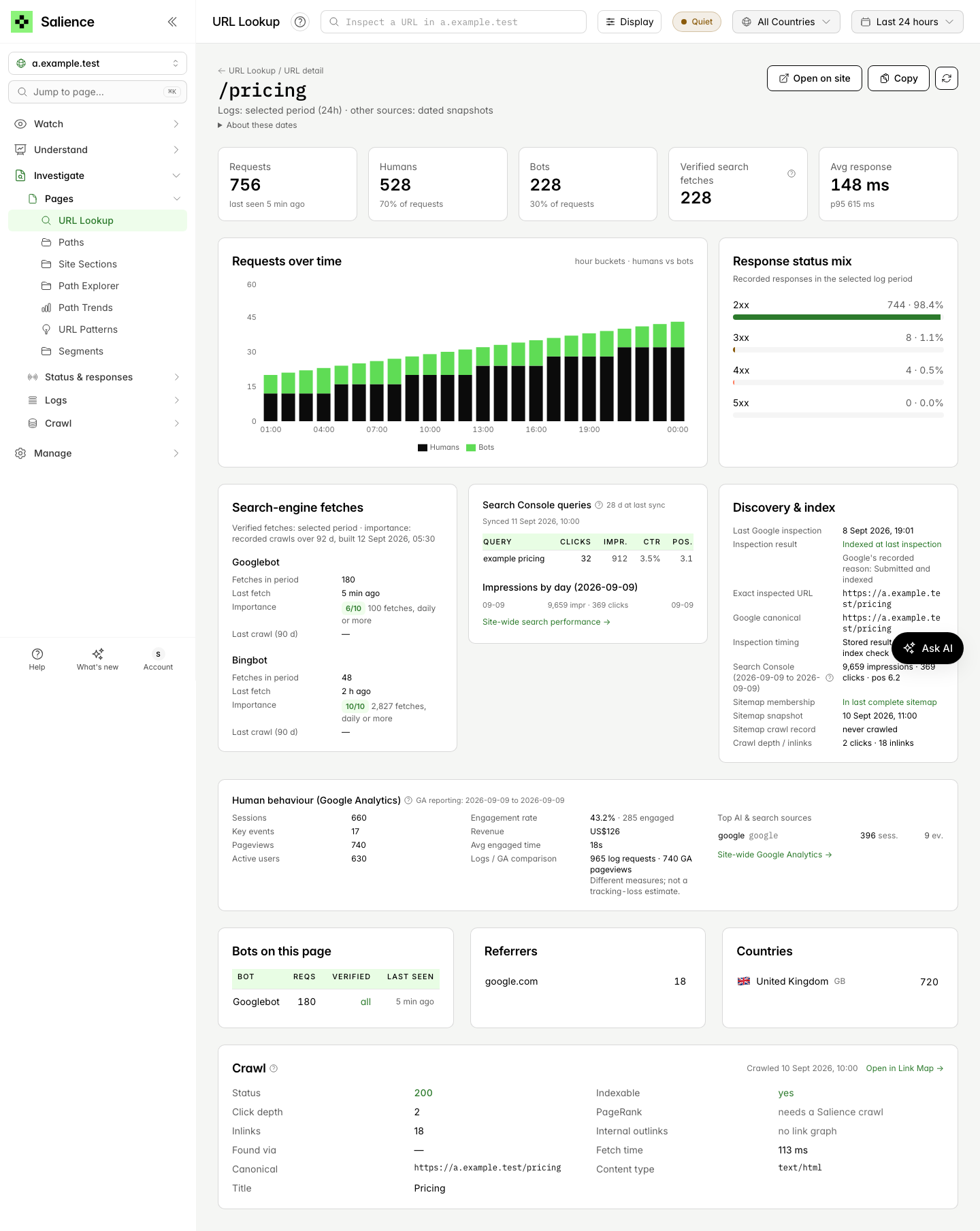
URL detail is one page per path that brings together what Salience holds for it: the logs (requests, humans vs bots, verified search-bot fetches, status mix, average and p95 response time, first/last seen, a requests-over-time chart, the bots that hit it, referrers and countries), Google and Bing activity with the nightly Importance score, sitemap membership, Search Console and Google Analytics evidence when connected, and what your last crawl recorded for it (status, indexable, click depth, inlinks/outlinks, PageRank, redirect target, canonical). If /about and /about/ both receive traffic the page says so and charts the twin as its own series.
- Inspect a URL — the box in the app header looks up a page on the selected website from anywhere in the app. URL Lookup (Investigate → Pages) opens the same search as its own page. Type a path fragment or prefix, or paste a full URL: known URLs from your sitemap, search-bot crawl records and latest crawl are suggested, prefix matches first. Press Enter to open exactly what you typed, even a path that appears only in raw logs.
- From reports — paths in Paths, Sitemap Coverage, Crawl Budget, Page Importance, Crawl Join, Recommendations and the Link Map details panel link here; in Log Explorer use the small arrow next to a path (clicking the path itself filters the log). You can also open
/url?path=/your/pagedirectly. - Not the same as Jump to page — Jump to page and the Explore search find reports, not URLs (see Finding your way around).
Each source has its own date
Only log evidence follows the selected period; the page header reads Logs: selected period · other sources: dated snapshots.
- Logs — requests, response codes and search-engine fetches in the selected period
- Importance — recorded crawls over its 90-day window, with the date the scores were built
- Sitemap — the last complete sitemap snapshot, with its date
- Google inspection — the stored result of Google’s URL Inspection API, with its inspection date
- Search Console — performance for the reporting dates shown beside it; data is 2–3 days behind, and per-page queries cover a trailing 28 days
- Google Analytics — its own reporting window, about a day behind
- Crawl — the crawl snapshot and when it finished
None of these is a live check. A later Googlebot visit or later search traffic is separate evidence and does not update an older snapshot.
Google inspection results
- Last Google inspection is when the stored inspection was made. Salience inspects URLs through the Search Console URL Inspection API during scheduled syncs; opening this page does not request a new inspection, a live crawl or indexing.
- Exact inspected URL is the full URL Google was asked about. It can differ from the path you looked up:
httpsorhttp,wwwor the bare domain, a trailing slash, or a Search Console property that covers only part of the site. Older inspections may show Not recorded for this historical inspection. - Google canonical is the URL Google chose as canonical. On its own it is not proof that this URL is indexed.
- A URL that has never been inspected is not the same as one Google reported as not indexed; it stays pending until it is inspected.
Sitemap membership
| Shown as | Meaning |
|---|---|
| In last complete sitemap | The URL was confirmed in the most recent complete sitemap snapshot |
| Confirmed removed from sitemap | A complete snapshot confirmed that the URL was removed; the removal date is shown |
| Not found in last complete sitemap | The last complete snapshot did not include this URL |
| Sitemap membership unknown | Membership could not be confirmed, for example because no complete snapshot is available. This does not mean the URL is missing from your sitemap |
| Sitemap status unknown: latest fetch incomplete | The latest fetch did not finish and this URL’s membership was not confirmed earlier |
When the latest sitemap attempt was incomplete, the page says so and membership comes from the last complete snapshot. The sitemap’s own lastmod value is shown as written in the file.
Missing evidence
Sections are independent. A source that is unavailable says why without hiding the others: Search Console or Google Analytics not connected, no synced Analytics data for this page (which does not mean there were no sessions), a URL that was not included in the crawl snapshot, or a crawl whose saved results are missing. Missing evidence is not, by itself, a problem with the page. Long periods on busy sites show a loading panel while the log query runs.
API — the same payload is on the public API as GET /public/v1/websites/{id}/url?path=…. The lookup is GET /public/v1/websites/{id}/urls/search?q=…, the MCP tool search_urls and salience urls <query> in the CLI.
Path TrendsNEW
Path Trends (Investigate → Pages → Path Trends) charts crawler hits to one path over the selected period, broken out by bot. It is the quickest answer to “how often do bots fetch my robots.txt or sitemap?”
- Path — defaults to
/robots.txt - Match — Exact, or Starts with (to chart a whole directory)
- Press Chart it (or Enter) for a stacked area chart, one band per bot — search engines, AI bots and scrapers alike. Use the crawler filter above the chart to isolate one
Status ConsistencyNEW
Status Consistency (Investigate → Status & responses → Status Consistency) finds pages that return mixed status codes to crawlers — sometimes 200, sometimes 404 or 5xx. Intermittent failures like these confuse search engines about whether a page exists.
- Severity — Critical (≥20% non-2xx), Warning (5–20%) or Minor (<5%)
- Sort — by impact, error % or requests; plus a path search
- Columns — Path, Requests, Severity, a status timeline, 2xx/3xx/4xx/5xx counts, Non-2xx % and Last issue. Exports add consistency % and impact score
- Crawl — when the site has a ready Site Crawler run, a final column shows what the crawler got for the same path (Indexable, Noindex, Canonical → other, a redirect, or Not in crawl), so an indexable page flipping 200/404 can be separated from a noindex or redirected one doing the same
Common causes: intermittent server errors, A/B testing and user-agent-based cloaking. Prioritise URLs that show 200 to some bots and 404/5xx to others.
RedirectsNEW
Redirects (Investigate → Status & responses → Redirects) lists every path returning a 3xx to search crawlers. Each redirect costs a hop of crawl budget.
- Columns — Source path, Status (301, 302, 307, 308), Destination and Crawler hits, paginated with CSV export
- 301 passes link equity; 302 may not — use the right type
- Look for chains (a redirect to another redirect). High counts are normal after a migration but should be cleaned up over time; Crawl Audit finds the internal links that cause them
Soft 404sNEW
Soft 404s (Investigate → Status & responses → Soft 404s) flags URL patterns that return 200 but look like error pages — typically consistent, small response sizes.
- Columns — URL pattern, Requests, Average bytes and the detection reason, paginated with CSV export
- Crawler agrees — with a ready Site Crawler run, a tick marks patterns where the crawler also fetched a 200 with very little content (under 3 KB or 50 words), which makes a real soft 404 far more likely than a legitimately small page; uploaded crawls carry no page size, so they never tick
- Soft 404s waste crawl budget because a search engine must download the page to discover it has no real content. Return a real 404/410 or a proper redirect instead
- Common causes: empty category pages, out-of-stock products and search results with no results
Crawl BudgetNEW
Crawl Budget (Understand → Search → Crawl Budget) shows how crawlers spend their requests across your site.
- Cards — Total crawl requests, Average daily crawl rate and Unique URLs crawled (if this is far below your page count, crawlers are not discovering all your content)
- Directory breakdown — Directory, Requests, % of budget, Unique URLs, Daily average and a distribution bar. Click a directory for the URLs inside it
- Indexable % — with a ready Site Crawler run, each directory also shows the share of its crawled pages that are indexable (200, no noindex, self-canonical), and the URL drilldown gets a Crawl column per path; a directory that eats budget but is mostly non-indexable is the first place to save
- Top URLs by crawl frequency — path, requests, share of budget and daily average
- Parameter waste — URL patterns with many query-string variations, badged High (>10% of budget), Medium (>5%) or Low impact
If crawlers spend budget on pagination, filters or admin pages, restrict them in robots.txt. Compare daily averages across periods to spot crawl-rate changes.
URL PatternsNEW
URL Patterns (Investigate → Pages → URL Patterns) automatically groups similar paths into templates — /blog/*, /product/*/reviews — to surface crawl-budget waste, rogue pagination, legacy paths and anomalies.
- Type filter — Pagination, Parameterized, Dynamic (UUID/hash), Date-based, Query params or Standard, with a count tile per type
- Flags filter — High 404s, Redirect heavy, Server errors, High cardinality, Over-crawled
- Min URLs — the minimum number of distinct URLs before a pattern counts (default 3, range 2–100); sort by most URLs, most requests, share of crawl or daily average
- Each pattern card shows unique URLs, requests, share of crawl, daily average, an example URL and status mix, and expands to the individual URLs. Export covers the same columns
Patterns with many unique URLs but few requests per URL often indicate thin content. Use them to inform robots.txt rules and internal linking.
Robots.txtNEW
Robots.txt (Understand → AI & bots → Robots.txt) fetches your live robots.txt, parses it into rule groups, and checks your logs for bots crawling paths they are told not to.
- Status — found, not found (without a robots.txt every bot may crawl every path), fetch error, or blocked. If the site refuses our request (for example with HTTP 403) you can paste your robots.txt manually; the report then says it is using the pasted copy. See Sitemap and robots.txt checks
- Cards — Rule groups, Total rules, Violations detected (unique bot + path combinations) and Violating requests
- Violations by bot — click a bot to filter the detail table (Bot, Path, Requests, Matching rule), with CSV export
- Parsed rules per user agent, the Sitemaps declared in the file, a raw-file view and a change history of every version we have seen, with a notice when the file has changed since the last check
Not all bots respect robots.txt — violations from scrapers are expected. AI fetchers such as ChatGPT-User request a page because a person asked an assistant about it. Operators including OpenAI say robots.txt rules may not apply to these user-initiated requests, so Salience lists them separately and does not count them as violations (see AI Crawlers). Crawl-delay is honoured by Bing and Yandex but ignored by Googlebot. To see how often bots fetch the file itself, use Path Trends.
Sitemap and robots.txt checksNEW
Salience fetches your robots.txt and sitemaps in two different ways, and their results answer different questions.
Sitemap discovery (full fetch)
Discovery builds the URL inventory behind Sitemap Coverage and sitemap membership on URL detail. It reads the Sitemap: lines in robots.txt (or common locations), follows redirects, and fetches sitemap index files recursively, importing every URL file. It runs when you add a website, daily for paid sites, and when you retry the checks.
- If a required file fails — for example a child sitemap returns 404 or 403 — the attempt is incomplete. The previous complete inventory is kept, so its pages are not treated as removed. The report lists failing file URLs with their HTTP status (up to ten examples, with the total), when the attempt ran and when the last complete check finished.
- Files that are too large, or sites that reach a processing limit, are reported as such rather than partly imported.
- On the Free plan the check confirms availability only (robots.txt plus the declared or common sitemap locations). It does not follow child sitemaps or build a full inventory, and shows Basic check only.
Site Checks probes (lightweight)
The nightly Site Checks probes request robots.txt and the top-level sitemap files only. They check how those responses are delivered, not every URL. When a sitemap root is served correctly but the last full discovery was incomplete, the sitemap delivery check reports a partial result.
What the results mean
| Result | Meaning |
|---|---|
| Checked / Completed | The fetch finished and the file was read |
| Incomplete / Partial | Some files were read but others were not confirmed. Earlier complete results are kept |
| Unconfirmed | A response arrived, but its content could not be confirmed as a valid sitemap, for example compressed content that could not be checked |
| Blocked or refused | Our request received HTTP 401, 403 or 429. This may apply only to automated requests; it is not proof that search engines are blocked |
| Not found | HTTP 404. A missing robots.txt is allowed and means there are no crawler rules |
| Failed | DNS, HTTPS or connection problems, a timeout, a server error, or an HTML page (such as a sign-in or challenge page) instead of the file |
| Pending | A check is queued or running. After about 20 minutes without a result it becomes unknown, with guidance to retry |
| Unknown | No confirmed result for the latest check. This does not mean the file is missing |
| Not applicable | Site Checks only: not enough relevant traffic, or probes are switched off for the site |
Robots.txt report and saved rules
Opening the Robots.txt report fetches the current file. If that fails, the analysis can use a previously saved or manually pasted copy; the report says which copy it is using and its date, and that this does not confirm the current file was fetched. An empty file returned with HTTP 200 counts as fetched. A 404 means no rules, and older saved rules are not presented as current.
Advice, not requirements
Checks separate retrieval problems from delivery advice. robots.txt and sitemaps can be generated dynamically. Cookies on these responses, Cache-Control: no-store and unusual content types appear as advice with the evidence; a CDN or bot-management cookie is informational, and no-cache is not the same as no-store.
Access, rechecking and history
- Requests identify themselves as SalienceBot. If your site refuses them, see SalienceBot for how to recognise and allow our requests. Allow only what is needed; do not switch off your wider firewall or bot protection to make a check pass.
- To check again, use Retry automatic checks in the Website setup details, then Refresh setup status. A queued check is not a result.
- Site Checks keep a 30-day verdict history, and the Robots.txt report keeps a change history of the versions it has seen.
Response TimesNEW
Response Times (Investigate → Status & responses → Response Times) compares how fast your server responds to bots versus humans. Search engines reduce their crawl rate when responses are consistently slow.
- Cards — Bot and Human average response, Bot and Human P95 (95% of requests were faster; over 500 ms is concerning). A large gap between bot and human P95 can mean server-side bot detection is adding latency
- Response times over time — bot vs human by hour, exportable
- Slowest paths for crawlers — Path, Average response, Requests and a status band: green up to 200 ms, amber above 200 ms, red above 500 ms. Rows per page from 20 to 1,000
Focus on slow paths that are also in your sitemap or receive heavy crawl traffic. Sites whose log source carries no timings (for example Vercel drains) show no data here.
Site Crawler
Site Crawler (Investigate → Crawl) runs LogLens’s own crawler, SalienceBot, against your site. A crawl knows every page and how it is linked; once it finishes, Crawl Join and Crawl Audit cross it with your logs. If you would rather bring a crawl from another tool, use Crawl Upload.
Running a crawl
- Crawl now — a polite crawl from your homepage, seeded with your sitemap and the pages search bots already fetch (so unlinked pages are still assessed), about 3 requests a second, robots.txt and Crawl-delay respected, backing off on 429/503. HTML only: no images, scripts or fonts.
Crawl options
- Page cap — 100, 500, 1,000, 5,000, 10,000 (default), 25,000 or 50,000 pages (the API accepts any value from 100 to 50,000)
- Crawl automatically every week — a checkbox, off by default. LogLens never crawls your site unless you press Crawl now, tick this box or upload an export
- Render JavaScript where needed — off by default. Renders the homepage, hub pages and pages whose HTML exposes no links in a headless browser so links added by JavaScript are followed. It costs more per page, so it is limited to a budget per crawl
- Keep query keys — query-string keys that identify distinct pages (e.g.
id, page). Everything else is stripped
Allow-listing SalienceBot
The crawler identifies itself as Mozilla/5.0 (compatible; SalienceBot/1.0; +https://loglens.ai/salience-bot.html) and always crawls from the fixed address 18.132.26.88. If a firewall or bot manager blocks it, the page shows a red “Your site blocked SalienceBot” panel with the reason (access denied, rate limited, a 503 challenge page, a connection drop, or a robots.txt disallow), an example URL, and exact allow-list instructions for Cloudflare WAF (a Skip rule for ip.src eq 18.132.26.88), AWS WAF (an IP set allow rule), Akamai/Imperva/Fastly, and robots.txt (User-agent: SalienceBot / Allow: /) — plus a Try the crawl again button. See SalienceBot for the published details. Scope any allow rule to our requests; do not turn off your wider firewall or bot protection.
Managing crawls
- The table lists every Salience crawl with status (queued, processing, ready, failed, blocked, cancelled), pages found, indexable pages, max depth and seeds. Cancel a running crawl or delete old ones from the row.
- The newest ready crawl, from either the Site Crawler or an upload, is marked in use and is what the reports are built on.
- Saved crawl results are kept until you delete the crawl, or delete the website with its data, or the account that owns it. This is separate from your log data: crawl reports cross the crawl snapshot with whatever log data exists for the selected period.
- Some older crawls show Saved results missing: the crawl record remains but its result files are gone. A new crawl rebuilds current results; it cannot restore the earlier snapshot.
Crawl Upload
Crawl Upload (Investigate → Crawl) takes a crawl from a third-party tool and processes it exactly like a Salience crawl, so Crawl Join and Crawl Audit work either way.
What to upload
- Upload an export — an export from your site crawler (its internal or HTML pages export), or a plain list of URLs (one per line). CSV or TSV, up to 200 MB. Depth and inlinks come from the export when present; a plain URL list has neither.
- Crawl now — SalienceBot crawls the site for you: a polite crawl from your homepage, seeded from your sitemap and from the pages search bots already fetch (so unlinked pages are still assessed), about 3 requests a second, robots.txt and
Crawl-delayrespected, backing off on 429/503. HTML only — no images, scripts or fonts.
Uploads
- Each upload is processed in the background; the table shows status, pages found and indexable pages. Delete uploads you no longer need.
Crawl Join
Crawl Join (Investigate → Crawl → Crawl Join) crosses a crawl of your site with what search engines actually fetch. A crawl knows every page and how it is linked; your logs know which of them Google visits. Together they show the pages Google ignores, the pages it still visits that your site no longer links to, and how crawl attention falls away with click depth.
Crawl Join is the report. Get a crawl in via the Site Crawler or Crawl Upload; the page shows which crawl it is based on and whether a newer one is running.
Reading the report
- Pages in crawl / Active / Ignored / Orphans / Not indexable tiles. Active = linked pages a verified search bot fetched in the period. Ignored = indexable, linked pages with no search-bot visit. Orphans = pages search bots fetch that nothing on the site links to any more (badged in sitemap or live, unlinked). Not indexable = redirects, errors, noindex, canonicalised
- Crawl attention by click depth and by inlinks — how many pages sit at each depth or inlink count and what share of them bots visited. Attention usually falls off a cliff past depth 3
- Ignored priority pages — ranked by Google impressions (connect Search Console to get these), then inlinks, then depth
- Since the previous crawl — new pages, pages gone, newly unlinked, pushed deeper, now erroring, with samples
- Every page table has Depth, Inlinks, Google impressions (28d), Search-bot hits, Which bots (top three with counts; hover for all) and Human visits
Managing crawls
The crawl history table lists each crawl with status (ready, queued, processing, blocked, failed, cancelled), pages, indexable pages, max depth and date. Cancel a queued or running crawl, or Delete an old one. Crawls can also be listed, started and cancelled from the API, CLI and MCP with a read & write key (see API actions).
Crawl shows very few pages? Only pages reachable through HTML links count as linked. Sites that inject navigation with JavaScript need the Render JavaScript where needed switch. A page that “works for you” but audits as 500 is probably rendering client-side after a failed server response — bots see the status code; check with curl -I.
Crawl AuditNEW
Crawl Audit (Investigate → Crawl → Crawl Audit) lists technical findings from your latest crawl, each crossed with your logs. A broken link matters more when Googlebot hits it fifty times a week; a noindex page matters more when it is the most-crawled page on the site. Findings that bots actually trip over come first.
Findings
| Finding | Severity | What it means |
|---|---|---|
| Broken internal links | High | Pages link to URLs returning 4xx/5xx (with the linking pages). Bots keep following them — wasted crawl budget and a bad signal. |
| Canonical problems | High | Canonicals pointing at other pages, redirects, errors, noindex pages or chains. Bots may index the wrong URL, or none. |
| Missing titles | High | Indexable pages with no title. |
| Internal links to redirects | Medium | Links point at URLs that redirect instead of the final page — every bot hit is a hop. |
| Redirect chains and loops | Medium | Redirects that redirect again (2+ hops) or loop. |
| Noindex pages still being crawled | Medium | Pages marked noindex that search bots still hit hard. |
| Duplicate titles | Medium | Groups of indexable pages sharing a title; the most-crawled one usually wins. |
| Thin pages (under 200 words) | Medium | Indexable pages with very little text. |
| Hreflang problems | Medium | Alternates that are missing, erroring or not reciprocal. |
| Slow pages (over 1.5 s) | Medium | Time to fetch the HTML from our crawler; slow sections get crawled less. |
| Sitemap hygiene | Medium | Sitemap URLs that redirect, 404 or are noindex. |
| Blocked by robots.txt but linked | Low | Pages the crawl was not allowed to fetch; linked-but-blocked pages leak PageRank. |
| Duplicate meta descriptions | Low | Groups of indexable pages sharing a description. |
| Missing meta descriptions | Low | Indexable pages with no description. |
| Titles over 65 characters | Low | Likely truncated in results. |
| Missing H1 / Multiple H1s | Low | Indexable pages with no H1, or more than one. |
| Large pages (over 1.5 MB HTML) | Low | Very large HTML documents. |
Crossed with your logs
- Every row shows Search-bot hits (verified search engines in the period), Which bots, Human visits and Last bot visit; rows sort by bot hits first
- The Bot hits on problems tile sums verified search-bot requests that landed on broken links, redirecting links, noindex pages, bad canonicals or sitemap problems — crawl budget spent on things to fix
- The summary also carries fetch-time percentiles and structured-data coverage. High-severity findings are expanded by default; each finding lists up to 500 rows
You need a Salience crawl or an uploaded export first (see Site Crawler or Crawl Upload); crawls made before the audit checks existed ask for a new crawl. Also available as /crawl-audit on the API, loglens crawl-audit and the MCP tool get_crawl_audit.
Link Map
Link Map (Investigate → Crawl) gives two views of the last Salience crawl, both crossed with what search bots actually fetched in the selected period. It fills the screen (there is a full-screen button); scroll to zoom towards the cursor, drag to pan, hover for a summary, click a page for its inlinks, outlinks and bot visits.
Crawl graph
The site as a hierarchy. The default hub & spoke layout puts the homepage as the big dark hub in the centre, each ring one click deeper, and hubs fan their spokes out so sections read as clusters. Radial tree and tree (left → right) layouts are one switch away. In every layout each page hangs off and every page hung off the shallowest page that links to it — the shortest path a search engine takes. The levels slider sets how many depths open by default; a +N badge means a page has hidden children, click to open them; more than 24 siblings fold into a “+N more” box that lists them in the side panel. Double-click a page to make it the root and see just its branch (a breadcrumb takes you back). Tick show unlinked to hang the pages nothing links to (reached only via the sitemap or the logs) off the root as a dashed branch.
Link graph
Every internal link among the loaded pages, laid out by force with nodes coloured by link community and sized by internal PageRank. Tightly interlinked sections pull together and weakly linked pages drift to the edges, so you can see whether your content silos exist as link communities or only as URL folders; the legend names each community by its dominant folder and share. Click a page to focus on its neighbourhood (the pages linking to it and the pages it links to), then click another to move along.
Colour, size and filters
- Colour by crawl depth (darker = closer to the homepage, pink = not returning 200), by search-bot attention (green fetched, grey linked-but-ignored, amber unlinked) or by indexability / status.
- Size by unique inlinks, internal PageRank, or uniform. Internal PageRank is computed over the crawl’s link graph; 1.0 is the page your own linking pushes hardest.
- Under restricts to a path prefix; load sets how many pages are fetched (breadth-first from the homepage, so the tree is always connected); find a path highlights matches and opens the branches that lead to them.
The two lists that matter
- Linked heavily, ignored by search bots — indexable pages with the most link equity that no search bot fetched. Your site says these matter; Google has not noticed.
- Fetched by search bots, barely linked — pages Google visits that have two or fewer internal links. Google already values them; link to them properly.
Uploaded exports carry no link edges, so this page needs a Salience crawl (see Site Crawler). Also on the API as /crawl-links, the CLI as loglens crawl-links and the MCP tool get_crawl_links.
SegmentsNEW
Segments (Investigate → Pages → Segments) let you define the parts of your site once — blog, products, categories, a set of old URLs — and then filter every page, chart and export to one of them. Segments are evaluated on your logs at query time, so they apply to all history, including before you created them. Up to 100 per website.
Defining a segment
- Rule types — path starts with, path contains, path is exactly, path matches regex, or query string contains. A page is included when any include rule matches
- Exclude rules — optional “…but exclude pages where any of these match”
- Inside — nest a segment inside another (shown as Parent › Name) or leave it as whole-site
- Colour — ten swatches, used wherever the segment appears
- Preview on the last 7 days — shows how many distinct paths and requests a rule matches before you save. Paths start with a slash and are case-sensitive
- Add common segments — a library that creates Blog, Products, Categories, Guides & help, Pagination, Parameter URLs, Search results and Account & checkout in one click (only the ones you do not already have)
Filter everything
Once a segment exists a picker appears in the header next to the country filter. Choose one and every page, chart and export is filtered to it; the choice is remembered per browser. The public API, CLI and MCP server accept segment=<segment_id> on many analytics reads; each endpoint and tool documents whether it does.
Segments in your logs (breakdown and compare)
- Every segment over the selected period, plus All pages: Requests, Humans, Search-bot hits and share, Googlebot, AI bots, Paths, Crawl coverage (share of the segment’s paths a verified search bot fetched), 4xx, 5xx and Redirects
- Compare with previous period (on by default) adds the change against the previous period of the same length — this is the migration view: watch hits move from an old segment to a new one
- Exclusive groups — when on, each request counts in the first matching segment only, in list order, so nothing is double counted, and an Unsegmented row shows what none of them cover
Segments can be created and deleted from the API, CLI (loglens segment-create) and MCP (create_segment) with a read & write key; the breakdown is /segments-breakdown?compare=1, loglens segment-breakdown --compare and get_segment_breakdown.
SEO ReportNEW
The Technical SEO Report (Manage → Reports & data → SEO Report) is a complete written report on how search engines and AI crawlers treat a site — verified crawl data, Page Importance, Site Checks, findings and recommendations — with an AI-written narrative. It is client-ready: open it and use your browser’s Print → Save as PDF for the branded document.
Generating a report
- Period — last 7, 30 (default) or 90 days; the report compares against the prior period where data exists
- Prepared for — optional free text (up to 120 characters) that appears on the cover alongside your organisation as “Prepared by”
- Reports take a couple of minutes. The list shows Generating…, Failed or an Open button; the report also lands on your Downloads page
- Up to 10 reports per organisation per month — a soft cap; get in touch if you need more
What is in it
- Cover and AI-written executive summary
- Site Checks verdicts with failing checks expanded
- Who crawls you — verified crawler league table, trend versus the prior period, verified versus impersonators
- Crawl budget and efficiency — redirect hops, 4xx burn, parameter sprawl, uncrawled sitemap URLs
- Page Importance — top pages, distribution and notable changes
- Indexation and discovery — sitemap coverage and, where connected, Search Console index coverage
- Serving quality for crawlers — status mix per bot, 5xx/429 incidents, soft-404 candidates, Googlebot versus human response times
- AI crawler activity — training versus search versus fetcher, top pages taken, your blocking posture
- Prioritised recommendations with evidence, effort and impact, plus an appendix and methodology page
Sections degrade gracefully — without a Search Console connection the indexation section says so. Reports can also be requested from the CLI (salience report --days 30 --for "Client name"), the MCP tool create_seo_report or the API (POST /reports/seo).
LLM CrawlersNEW
The AI Crawlers page (Understand → AI & bots → AI Crawlers) is a dedicated view of AI and large-language-model bot activity on your site: which AI crawlers come, what they take, whether they are genuine, and what each AI company gives back.
Understand exactly how AI crawlers are accessing your content, which pages they read most, and whether they are legitimate.
Intent: training, search or fetcher
Every AI bot is tagged with an intent, shown as three tiles at the top of the page and as a badge on each crawler. In the app the tiles read Training on your content, Indexing for AI search and Answering people about you. Select a tile to filter: the traffic chart, crawler breakdown and other per-bot panels then show only that intent and are labelled accordingly. Figures that cannot be split by intent, such as the number of pages visited by AI crawlers, say that they cover all crawlers.
- Training — corpus crawlers feeding model training. Nothing comes back to the site.
- Search — index crawlers for an AI search product that can cite and link to you.
- Fetcher — a real person asked the AI about a page right now. Because the request is user-initiated, operators such as OpenAI say robots.txt rules may not apply, so these requests are listed separately and not counted as robots.txt violations.
Crawlers tracked
| Crawler | Operator | Intent |
|---|---|---|
| GPTBot | OpenAI | Training |
| OAI-SearchBot | OpenAI | Search |
| ChatGPT-User | OpenAI | Fetcher |
| ClaudeBot | Anthropic | Training |
| Claude-SearchBot | Anthropic | Search |
| Claude-User | Anthropic | Fetcher |
| PerplexityBot | Perplexity | Search |
| Perplexity-User | Perplexity | Fetcher |
| Google-Extended | Training | |
| Applebot | Apple | Search |
| Amazonbot | Amazon | Search |
| DuckAssistBot | DuckDuckGo | Fetcher |
| Gemini-User | Fetcher | |
| Meta-ExternalFetcher | Meta | Fetcher |
| CCBot | Common Crawl | Training |
| Bytespider | ByteDance | Training |
| Meta-ExternalAgent | Meta | Training |
New AI crawlers are added to the bot registry as they appear, and you get a New AI Crawler Detected alert the first time one visits your site.
Key metrics
- Total requests from AI crawlers in the selected period, and unique pages accessed
- Response times served to AI crawlers
- Verification — how many requests come from verified versus unverified AI bots (see Bot Verification)
- Per-bot time series, top pages and IP verification, with the crawler dropdown to isolate one bot
What each AI company gives back
For each operator — OpenAI, Anthropic, Perplexity, Google Gemini, Microsoft Copilot and others — the page shows search-and-answer fetches, training crawls, visitors sent (humans arriving from the AI’s answer, detected from the referrer host such as chatgpt.com or perplexity.ai, or a utm_source=chatgpt.com tag) and fetches per visitor — the scrape-to-referral ratio. “Nothing back” means fetches but no visitors; “visits only” means visitors but no bot of its own (Gemini uses Googlebot’s index). AI-referred human visits are always kept, even on a bots-only retention preset, so this report keeps working.
AI discovery gaps
Pages that Google ranks (Search Console impressions above a threshold, default 50) that no AI search or answer bot has fetched in the period — they cannot be cited by AI search yet. This needs a connected Search Console property.
Page access patterns and trends
See which pages AI crawlers read most and how activity changes over time — sudden increases, or a drop after you update robots.txt.
To block a training crawler, add it to robots.txt: User-agent: GPTBot followed by Disallow: /. The AI crawler access check will ask whether the block is intentional. A fetcher may still request your page when a person asks an assistant about it, because robots.txt rules may not apply to user-initiated requests; each operator’s documentation says what its fetchers follow.
Also available: /llms and /ai-funnel on the public API, salience llms and loglens ai-funnel on the CLI, and the MCP tools get_llms and get_ai_funnel. Bot exports include an ai_intent column.
AI Landing PagesNEW
The AI Landing Pages view (Understand → AI & bots → AI Landing Pages, also linked from the AI Crawlers page and the dashboard’s “What AI is doing on your site” card) answers the other half of the AI question: not what the crawlers took, but which of your pages AI assistants actually send people to — ChatGPT, Perplexity, Claude, Gemini, Copilot and others — and what those visitors do once they arrive.
See the pages assistants cite, how much of each page’s human traffic now comes from AI, whether those visitors stay, and where they go next.
How an AI referral is detected
A visit counts as AI-referred when a human request’s referrer host is an AI assistant (chatgpt.com, chat.openai.com, perplexity.ai, claude.ai, gemini.google.com, copilot.microsoft.com, you.com, meta.ai, grok.com, chat.mistral.ai, duck.ai, chat.deepseek.com, kagi.com and similar), or when its URL carries a utm_source naming one — for example utm_source=chatgpt.com, which ChatGPT appends to links it shows. Assistants frequently strip the referrer, so the numbers are a floor: they never overcount. Bot traffic is excluded, so an assistant fetching your page to read it does not count as a visit.
What the page shows
- AI-referred visits for the selected period, with a chip comparing against the previous period of the same length.
- Share of human traffic — AI-referred visits as a percentage of every human request on the site.
- Pages cited and assistants — how many distinct landing pages received an AI-referred visit, and how many assistants sent one.
- Visits over time per assistant at the dashboard’s chart granularity; the chart follows your line/bar chart-style setting.
- Filter pills to focus on one assistant. The filter is applied server-side, so the bounce proxy and next-page figures are for that assistant’s visitors only.
The landing pages table
One row per page, top 200 by AI-referred visits. Each row shows the assistants that cited it (logos; hover for counts), the AI visits, the share of page (AI visits as a percentage of all human visits to that page) and a bounce proxy. Click a row to expand it:
- Where they went next — the top three pages the same IP addresses requested within 30 minutes of landing, counted once per IP. Static assets and API/framework routes (
/api/,/_next/,/wp-json/…) are ignored. - Bounce proxy — the share of AI-referred visits whose IP made no other page request anywhere in the period. It is a heuristic, not a true bounce rate: shared IPs and repeat visitors make it an estimate, which is why it is labelled a proxy.
- Cited by with per-assistant counts, plus first and last seen.
Every path links to its URL detail page. Privacy mode masks paths here as everywhere else.
When it is empty
No AI-referred visits in the period is a real answer, not a loading state: the empty state lists the referrer hosts and utm_source values that are recognised so you can check your own links. If the AI Crawlers page shows no search or fetcher activity either, assistants have nothing of yours to cite yet.
Also available: GET /ai-landing on the public API, loglens ai-landing on the CLI, and the MCP tool get_ai_landing_pages. All accept operator= (one assistant), countries= and segment=.
AlertsNEW
LogLens monitors your traffic and automatically alerts you when anomalies are detected. Alerts are under Watch → Alerts.
Get instant email notifications when traffic spikes, errors surge, or bots behave unusually.
How Alerting Works
- Baseline Building — LogLens learns what is normal for each hour of the week from your own traffic. Very sparse baselines do not alert, and young baselines alert only on large deviations
- Anomaly Detection — Incoming metrics are compared against the baseline using statistical analysis
- Alert Triggering — When metrics deviate significantly from the baseline, an alert is triggered
- Email Notification — You receive an email with details about the anomaly
- Cooldown — To prevent alert fatigue, there's a cooldown period before the same alert can trigger again
Baseline Status
The Alerts page baseline status counts the hours of the week that have request baseline data, and reads Baseline established once 24 of them do. That is a site-wide request figure: other metrics and individual hours keep maturing afterwards, and a young baseline alerts only on large deviations. The dashboard’s site health panel shows the current state across metrics, for example baseline established for 3 of 5 metrics (see Dashboard Overview).
Alert Types
LogLens ships with twenty-one alert types at three severities. Each is enabled by default; you can disable any of them or change their check frequency in Alert Settings. Every type has a minimum-volume gate (so a quiet site is not paged over a handful of requests) and a cooldown before the same alert can fire again.
Critical (red — page someone now)
| Alert | What it detects |
|---|---|
| Server Error Spike 5xx | Unusual rate of 5xx server errors. Visitors are seeing failures — check your origin, recent deployments, and downstream services. |
| Traffic Blackout | Traffic has dropped to near-zero compared to your baseline. LogLens probes the site over HTTP before firing to confirm it’s actually unreachable rather than just quiet. |
| Crawler Error Spike | Search engine crawlers (Googlebot, Bingbot etc.) are receiving an elevated error rate. Pages that crawlers can’t fetch will eventually drop out of the index. |
| Exposed Secret in URL | A scan of your URLs detected a token, API key, JWT, AWS access key, Stripe live key, or other sensitive value. Once a value lands in URLs it ends up in CDN logs, browser history, and referer headers — treat it as compromised and rotate immediately. |
| Security Check Changed NEW | One of the security-hygiene Site Checks changed verdict — for example a sensitive file started returning 200. |
Warning (orange — investigate soon)
| Alert | What it detects |
|---|---|
| Suspicious URL Patterns | Scanner activity targeting known-vulnerable paths (/.env, /wp-config.php, /.git/config, etc.), known scanner user-agents (sqlmap, nuclei, nikto), or attack patterns in URLs (SQL injection, path traversal, XSS, Log4Shell). Before escalating, LogLens fetches the flagged paths itself to tell a real exposure from a soft-404. |
| Crawler Rate Dropped | A search engine crawler that normally visits your site has stopped or sharply reduced its visits. Often the leading indicator of an indexing problem. |
| Traffic Above Normal | Traffic far above the recent baseline. Could be viral content, a press hit, or aggressive scraping/DDoS — the top-hit URLs in the email tell you which. |
| Unverified Bots Claiming Identity | A spike in bots claiming to be Googlebot/Bingbot/etc. but coming from IPs that don’t belong to those crawlers. Scrapers often forge UAs to bypass robots.txt. |
| Latency Degradation | Average response time has risen significantly. The slowest URLs in the email tell you where to look first. |
| Elevated 404s | An unusually high number of not-found errors. Often means a deploy changed URLs, an external link points somewhere that no longer exists, or an attacker is path-fuzzing. |
| Human Traffic Drop | Real-user traffic has dropped while bot traffic remains stable — suggests a routing issue, SEO penalty, broken redirect, or UX problem affecting only humans. |
| Elevated Redirects | An unusually high proportion of 3xx responses. Most often a misconfigured redirect rule looping or a scraper hammering an apex domain that redirects. |
| Client Error Spike 4xx | Elevated rate of 4xx client errors (excluding the dedicated 404 alert). Usually points to authentication issues, broken APIs, or malformed clients. |
| New AI Crawler Detected NEW | An AI crawler has been seen on your site for the first time. |
| AI Crawl Errors High NEW | AI crawlers are hitting a high 4xx/5xx rate — they may be blocked unintentionally, or hitting broken pages. |
| Crawler-Access Check Changed NEW | A crawler-access Site Check changed verdict (Googlebot blocked, robots.txt failing, sitemap stale, and so on). |
| Serving-Quality Check Changed NEW | A serving-quality Site Check changed verdict (crawler 5xx rate, latency, soft 404s, redirect hygiene). |
Informational (blue — context only)
| Alert | What it detects |
|---|---|
| Bot Ratio Shift | The proportion of bot vs. human traffic has changed significantly — new crawler, new scraper, or a change in your CDN/WAF config. |
| Traffic Pattern Anomaly | Traffic is unusual for this time of day but doesn’t match a more specific pattern. Worth a glance. |
| Crawler Frequency Change | A search engine crawler’s rate has changed significantly — not a drop-off, just a meaningful up/down. |
Every alert email includes AI severity scoring and a one-paragraph narrative explaining what’s happening, plus a deep link into the relevant dashboard view with the time window pinned to when the alert fired.
Alert Settings
Configure each alert type independently in the Settings tab of the Alerts page.
Per-Alert Configuration
Each alert type can be configured with:
- Enabled/Disabled — Toggle the alert on or off
- Check Frequency — How often to check for anomalies (1 min to 24 hours, based on your plan)
Check Frequency Options
| Frequency | Best For |
|---|---|
| 1 minute | Critical production systems (Enterprise) |
| 5 minutes | High-traffic sites needing quick detection |
| 15 minutes | Most production sites |
| 1 hour | Standard monitoring |
| 24 hours | Daily summary (Free tier) |
Delivery: email, Slack, webhooks
- Email — the default. Every alert email carries the AI triage narrative, the top URLs or IPs involved and a deep link into the dashboard. Crawler-error emails include a one-click link to suppress that bot from future alerts.
- Slack — paste a Slack incoming-webhook URL (
https://hooks.slack.com/services/...) into the webhooks list and alerts post to that channel as well. - Webhooks — up to five HTTPS endpoints receive each alert payload as JSON, so you can route it into Discord, PagerDuty, Opsgenie or your own tooling.
Alerts can also be read and acknowledged from the public API (/alerts, /alerts/config), the CLI (salience alerts, loglens ack-alert) and MCP (get_alerts, acknowledge_alert). Snoozing an incident is available in the app only.
Alert streams
Email streams are role-based subscriptions that are yours alone, across all your sites. Subscribe to any combination on the Alerts page; each stream has its own thresholds and cadence. With no streams selected you get the standard digest configured above.
| Stream | What you get |
|---|---|
| SEO digest | Crawler drops, redirect storms, crawl errors — daily, with sensitive thresholds tuned for SEO work. |
| Engineering alerts | 5xx spikes, latency degradation, verified attack probes — tight thresholds, minimal noise. |
| AI visibility report | New AI crawlers, bot impersonation, AI crawl errors — plus a weekly training / RAG / AI-search mix summary. |
| Marketing pulse | Traffic surges, site-down errors, broken campaign links — headline events only. |
| Owner’s weekly | Only severity-5 in real time, plus a Monday email with week-over-week trend and the top problem. |
When you invite a colleague you can tick the role that best describes them (SEO specialist, Developer / engineer, AI / GEO specialist, Marketing / e-commerce, Owner / executive) to pre-subscribe them to the matching streams — see Organization → Team.
You might want different frequencies for different alert types—for example, check errors every 5 minutes but bot activity every hour.
Alert History
The Alerts page has two history views:
Alerts Tab — incidents
The Alerts tab groups repeated alerts into incidents, so a scanner that probes you for an hour shows up as one card (“Suspicious URL Patterns · 203.0.113.9 · ×14”) rather than fourteen identical ones. Alerts are grouped by a fingerprint of alert type + severity + subject — the subject being whatever the alert is about: the offending IP, the crawler name, the failing site check, or the metric that moved. An alert joins the open incident for its fingerprint if the previous one was less than six hours earlier; a longer gap starts a new incident.
Each incident card shows:
- Alert type, severity and subject, with a ×N badge for the number of occurrences
- A status pill: Active (still firing), Cleared (no repeat for longer than the type’s clear window — 2 hours by default, 24 hours for the nightly site checks and daily AI-crawler / secret scans) or Snoozed
- First seen / last seen and a compact timeline (“14 occurrences over 2h 28m”); cleared incidents read “active 09:12–11:40, 14 alerts”
- The AI triage of the latest alert in the incident
- Acknowledge all, Snooze (1 hour, 24 hours or 7 days) or Unsnooze, and a “Show underlying alerts” expander listing every alert behind the card
Cleared incidents are collapsed under a Cleared section so the top of the page is only what is still happening. The unread badge counts unacknowledged incidents, not individual alerts. Use Show individual alerts to switch back to the flat per-alert list.
Snoozing
Snoozing an incident mutes it without hiding it: LogLens keeps recording occurrences (so the timeline and counts stay honest) but sends no email, webhook or digest entry for that fingerprint until the snooze expires or you unsnooze it. Snoozes are per site and per fingerprint, so snoozing one scanner’s probes does not mute a different IP doing the same thing.
Acknowledge, snooze and cleared
- Acknowledge marks an incident as reviewed. It does not resolve the underlying problem, and new occurrences are still recorded.
- Snooze pauses notifications for that incident for a while; new occurrences are still recorded.
- Cleared means the alert has not repeated within its clear window. It is based on the alerts stopping, not on a separate confirmation that the problem is fixed. A Site Check that returns to pass also sends a low-severity Recovered alert.
Incident and alert counts
The selected dates match an incident’s last seen time, or an individual alert’s creation time. An incident’s occurrence count covers the whole retained incident, even if part of it falls outside the selected dates, and its status and acknowledgement show its current state. Incident cards and the unread badge count incidents; the individual alerts list and its export count alert records. On the dashboard, the site health badge counts unacknowledged alert records from the last 30 days, whatever dates are selected.
Fewer duplicate records
When the detector sees the same fingerprint fire again within six hours it updates the existing alert’s last seen and occurrence count rather than writing a new record, so a sustained condition is one alert that keeps ticking instead of a pile of copies. Underlying alerts in an incident show a “Repeated N×” note when this has happened.
Run History Tab
Shows every time the alert system ran, even when no alert was triggered. This helps you verify that monitoring is working correctly:
- Run timestamp
- Alert type checked
- Status (no anomaly detected, or alert triggered)
- Metrics at the time of check
Use Run History to verify your alerts are running at the expected frequency. If you don't see recent runs, check your alert settings.
AI Alert TriageNEW
Every alert email is enriched by an AI triage pass before it reaches your inbox. We send the alert details to Claude (Anthropic’s LLM) and ask it three things:
- Severity score — a 1–5 rating combining the rule-based severity with judgement about the specifics. A 4xx spike caused by one bad scraper hitting one path is a 2; the same spike caused by a deployment breaking your homepage is a 5.
- Narrative — one or two sentences explaining what looks to be happening, written for someone who didn’t see the metrics.
- Recommended next step — the most useful single thing to do right now (e.g. “block the source IP at your WAF”, “check the latest deploy for routing changes”).
The triage block appears at the top of every alert email above the raw stats, so you can decide in five seconds whether to dig in or close the tab. If the triage call fails (cold start, rate limit, etc.) the email still sends with all its rule-based content — you never lose alerts.
The triage runs on Claude Haiku (Anthropic’s fastest model) with a 15-second timeout. Cost is roughly $0.004 per alert, included in your plan.
Alert SuppressionNEW
Some alerts are technically true but operationally noise — an enthusiastic scraper hitting the same 404 over and over, a known-bad bot you’ve already decided to live with. Every alert email about crawler errors includes one-click suppression buttons:
What gets suppressed
- Per-crawler suppression — “Don’t alert for BotXYZ” stops crawler-related alerts about that specific bot.
- Per-status-code-and-crawler suppression — “Don’t alert on 404 errors for BotXYZ” is more surgical: that bot can still trigger alerts about 5xx errors, but its 404s are filtered out.
Click a suppression link from any alert email; the rule is added to your alert config instantly. You can review and remove suppressions on the Alerts › Settings page.
Weekly Email ReportsNEW
Every Monday morning at 8:00 UTC, every site you own gets a digest email summarising the week. The report covers:
- Headline numbers — total requests, unique visitors, bot share, crawler share, week-over-week change.
- Top movers — pages that gained or lost the most traffic vs. last week.
- SEO health — crawler activity by bot, indexed-page count from Google Search Console (if connected), and any sitemap-coverage changes.
- Alerts fired — a count of alerts that fired during the week, grouped by type.
Reports are sent to all admins of the website’s organisation. To opt out for an organisation, head to Organisation Settings › Notifications.
Daily DigestNEW
The daily digest is a once-a-day email summarising the previous 24 hours for each of your sites — traffic totals, bot share, top movers, anything that fired an alert, and any unverified-bot or scraping activity worth knowing about.
Daily digests are now included on every plan, including Free and Basic. (Previously paid-only.)
What’s in it
- Yesterday at a glance — total requests, human vs. bot split, change vs. the previous day.
- Notable changes — pages, bots, or countries that moved sharply.
- Alerts fired — a roll-up of any alerts that triggered in the last 24 hours.
- Recommendations preview — a peek at the top items currently sitting on your Recommendations page.
Opting in or out
Daily digests are on by default. To opt out (or opt back in), head to Organisation Settings › Notifications and toggle “Daily digest”. Settings are per-user, so each member of your org chooses for themselves.
CSV ExportNEW
Export data from any table in LogLens to CSV for further analysis in spreadsheets or other tools.
Export visible rows quickly, or queue an “Export all” job that drops the full dataset into Downloads when it’s ready.
How to Export
- Navigate to any page with data tables (Bots, Paths, IPs, Recommendations, etc.)
- Click the “Export CSV” (or per-tab “Export this page”) button above the table
- If there’s more data than displayed, choose between:
- Export this page — Instant download of the currently displayed rows
- Export all data — Queues a background job that fetches the full dataset and writes the CSV to your Downloads page when ready (best for large or paginated datasets)
- Per-page exports start downloading immediately; “Export all” jobs notify you when finished
Filenames
Exported filenames include the site domain, the table name, and the time range — e.g. example.com-recommendations-ips-7d.csv — so you can keep multi-site exports straight without renaming.
Sortable columns
Most tables have sortable columns with a 3-state cycle: click a header to sort descending, click again for ascending, click a third time to clear and return to the default order. The current sort is reflected in the export, so you can shape the CSV before downloading.
Country flags
Tables that include a country column show the flag inline next to the ISO code. Hover any flag for a tooltip with the full country name. Flags are decorative in the CSV — the underlying ISO code and country name are written as plain text.
Export Locations
Export buttons are available on:
- Traffic page (hourly breakdown)
- Bots page (all bots list)
- Bot Detail page (paths and request history)
- Paths page
- Referrers page
- Geography page
- Devices page (browsers and OS)
- IP Addresses page (IPs, ranges, and request details)
- Status Codes page
- Alerts page (alert history and run history)
- Recommendations page — per-tab “Export this page” for IPs to block, 404s to fix, Unverified bots, and Slow paths, plus an “Export all data” option that queues each tab’s full dataset to Downloads
Very large exports (>100,000 rows) may take several minutes. Use “Export all data” — it runs in the background and the file lands in your Downloads page so you don’t need to keep the tab open.
Public APINEW
Access your LogLens analytics data programmatically through our REST API.
Build custom dashboards, integrate with your tools, or automate reporting.
Getting an API Key
- Go to Organization → API Access
- Create either an organization key (scoped to this organization; needs admin access) or a personal key (all websites you can see, across all your organizations — ideal for the MCP server)
- Choose a scope: Read only (queries and reports) or Read & write (can also acknowledge alerts, add site events, suppress bots, resolve recommendations, manage segments and start crawls — see API actions)
- Give it a name and copy the key — it starts with
llapi_and is only shown once (ingest keys, used by your CDN or log drain, start withll_and are different)
Authentication and base URL
All endpoints live under https://api.loglens.ai/public/v1. Pass your key in the Authorization header (or as X-API-Key):
Authorization: Bearer llapi_your_api_key_here
Available Endpoints
Paths below are relative to /public/v1/websites/{id} unless shown in full. The API covers many reports, not every app feature: website setup, feedback and incident snoozing are app-only. Parameters differ by endpoint, so check the API documentation for what each one accepts.
Core analytics
| Endpoint | Description |
|---|---|
GET /public/v1/websites | List the websites your key can see |
GET /summary | Headline traffic totals |
GET /traffic | Traffic time series |
GET /bots | Bot and crawler breakdown with verification (split_variants=true separates Googlebot Desktop and Smartphone) |
GET /paths | Top paths |
GET /geography | Country breakdown |
GET /status-codes | Status-code distribution |
GET /ips | Top IP addresses |
GET /ips/{ip}/requests | Requests from one IP |
GET /referrers | Top referrers |
GET /devices | Device, browser and OS breakdown |
GET /requests | Raw request log (Log Explorer) with combinable filters and cursor paging, up to 500 rows per call |
SEO
| Endpoint | Description |
|---|---|
GET /seo | SEO crawler overview |
GET /seo/sitemap | Sitemap coverage |
GET /seo/sitemap/url-history | Per-URL crawl history across bots |
GET /seo/budget-urls | Per-URL crawl budget within a directory |
GET /seo/url-patterns | Auto-detected URL patterns with crawl frequency |
GET /seo/path-explorer | Directory tree of crawled paths |
GET /seo/status-consistency | URLs with inconsistent status codes |
GET /seo/requests | Raw crawler request log |
GET /seo/robots | robots.txt analysis and violations |
GET /seo/index-coverage | Google index coverage summary (needs Search Console) |
GET /seo/index-coverage/urls | Index coverage URL drill-down |
GET /page-importance | Page Importance scores (0–10) |
GET /ga/overview | Google Analytics (GA4) outcomes vs previous period, sources, AI assistants, measurement gap (needs a connected GA4 property) |
GET /ga/pages | GA4 landing pages by sessions (limit, q) |
LLM / AI
| Endpoint | Description |
|---|---|
GET /llms | AI-crawler analytics with per-bot series, top pages, verification and intent |
GET /ai-funnel | Per-operator give-and-take (fetches vs visitors sent) and AI discovery gaps |
GET /ai-landing | Pages AI assistants send people to: visits per assistant, share of page, bounce proxy, next pages (operator=, limit=) |
Crawls
| Endpoint | Description |
|---|---|
GET /crawls | List uploads and Salience crawls with status and audit summary |
GET /crawl-report | Latest crawl joined to logs: active, ignored, orphans, attention by depth and inlinks |
GET /crawl-audit | Audit findings crossed with logs, worst-for-bots first |
Segments
| Endpoint | Description |
|---|---|
GET /segments | Saved segments (name, rules, parent) |
GET /segments-breakdown | Every segment over the period; compare=1 adds the prior period and deltas |
Recommendations, insights, health, checks, live
| Endpoint | Description |
|---|---|
GET /recommendations | Actionable recommendations |
GET /recommendations/paths-404, /slow-paths, /unverified-bots | The three detail lists |
GET /recommendations/snippet?type=&target= | Ready-to-paste deploy rule (block_ips, block_bots, gone_404s) for cloudflare, cloudfront, nginx, apache, netlify, vercel or robots |
GET /insights | AI-generated insights |
GET /health, GET /health/history | Site and ingestion health, and its trend |
GET /checks, GET /checks/history | Site Check verdicts with evidence, and daily verdict history |
GET /live | Real-time request feed |
Exports and reports
| Endpoint | Description |
|---|---|
GET /exports | List background export jobs |
POST /exports | Queue a background export (read key is enough) |
GET /exports/{job_id}/download | Short-lived download link |
POST /reports/seo | Generate a Technical SEO Report (read key is enough; counts toward the 10-per-month cap) |
Alerts and site events
| Endpoint | Description |
|---|---|
GET /alerts | Fired alert history |
GET /alerts/config | Alert configuration |
GET /site-events | Site events and chart annotations |
Writes (read & write key)
| Endpoint | Description |
|---|---|
POST /alerts/{alert_id}/acknowledge | Acknowledge an alert |
POST /site-events, DELETE /site-events/{event_id} | Add or remove a site event |
POST /bots/{bot}/suppress, DELETE /bots/{bot}/suppress | Stop a bot raising alerts (optionally for days), and undo |
POST /recommendations/resolve, DELETE /recommendations/resolve/{key} | Resolve a recommendation, and re-open it |
POST /segments, POST /segments/library, PUT /segments/{id}, DELETE /segments/{id} | Create (or add from the library), update and delete segments |
POST /crawls/run, POST /crawls/{crawl_id}/cancel | Start a Salience crawl (max_pages optional) and cancel one |
Common query parameters
- Time range — on reports over a period:
hours(default 24, up to 8760), orstartandendin ISO 8601, which overridehours. Current-state reads, such as Site Check verdicts, do not use them segment=<segment_id>— narrow a supported read to a saved segmentmax_rows=N— where supported, cap lists in the response; a_truncatedfield tells you the original countslimiton list endpoints, andpage/cursorwhere paging applies
GET /public/v1/websites/{id}/bots?start=2026-03-05&end=2026-03-27
GET /public/v1/websites/{id}/bots?hours=168&split_variants=true&segment=SEGMENT_ID&max_rows=50
Rate Limits
The public API is available on Starter and above. Read limits per plan (per hour, per organization, with X-RateLimit headers on every response):
- Free / Basic: no public API access
- Starter: 100 requests/hour
- Growth: 500 requests/hour
- Scale: 2,000 requests/hour
- Unlimited / Enterprise: higher — talk to us
Writes have a separate limit of 120 actions per hour per organization. Archive-tier and paused organizations have API access switched off.
Full Documentation
For complete API reference with examples, see the API Documentation.
API actions & key scopesNEW
API keys are read-only unless you create them with the read & write scope (Organization → API Access). Existing keys stay read-only; a read-only key gets HTTP 403 “This API key is read-only” on any action.
What a read & write key can do
On the public API, the MCP server or the CLI:
- Acknowledge alerts
- Add and remove site events on the timeline
- Suppress a bot from alerts, optionally for a number of days, and unsuppress it
- Resolve and re-open recommendations
- Create, update and delete segments, or add the common ones from the library
- Start and cancel Salience crawls
Guard rails
- Every action is recorded as a site event on the timeline naming the key that made it
- Writes are limited to 120 per hour per organization, separately from the read limit
- Queueing an export or an SEO report is not treated as a write — a read key can do both
Reads, jobs and costs
- A read-only key cannot change your configuration or data, such as alerts, segments or crawls. Most reads only return results, and they count toward your plan’s hourly API limit and the same fair-use analytics allowance as the dashboard. Keep queries bounded: a short period, a
limitand only the website you need. - A few read-scoped operations start jobs instead of just returning results: queueing an export creates a background job, and requesting an SEO report generates one and counts toward the monthly report cap.
- Starting a crawl makes SalienceBot request pages from your site, up to the page cap you set.
- Snoozing incidents, website setup and feedback have no API, CLI or MCP action.
For turning a recommendation into a firewall rule, see the Deploy panel — nothing is ever applied to your hosting automatically.
Command-Line Interface (CLI)NEW
Access your LogLens analytics from the terminal. Great for scripting, monitoring, and quick lookups.
Installation
npm install -g @salience/lens-cli
Install with Node.js and npm. The command is salience; loglens remains an alias, so older examples still work.
Setup
# Save your API key (or set SALIENCE_API_KEY in the environment; LOGLENS_API_KEY also works)
salience config set-key llapi_your_api_key_here

# Set a default website (optional — skip the -w flag)
salience config set-website YOUR_WEBSITE_ID

# Show the current configuration (key redacted)
salience config show
Agent skill (CLI 2.1.0 and later)
The CLI package includes a salience-cli skill: workflows for investigating search crawlers, AI crawlers, errors and individual pages, with guidance on bounded queries, source dates and evidence limits. It is guidance for existing CLI commands, not a new API or MCP capability. Installing the npm package does not register it with your coding agent; from your project folder, copy it to a new directory your agent reads:
# Codex
salience skills install .agents/skills/salience-cli

# Claude Code
salience skills install .claude/skills/salience-cli

# Print the bundled skill directory, for other agents
salience skills path
- The destination must be a new directory. The installer copies the skill and its references, refuses to overwrite existing files, does not edit
AGENTS.mdorCLAUDE.md, and does not create an API key or connect your account. - To use it in every project, install to
"$HOME/.agents/skills/salience-cli"(Codex) or"$HOME/.claude/skills/salience-cli"(Claude Code). Choose project or personal installation, not both, to avoid duplicate skill names. - Start a new agent session and check that
salience-cliappears in its skill list. The agent still needs shell access tosalienceand an API key supplied separately; finding the skill does not prove API access. - Upgrading the CLI does not update a copied skill. Install the new version to a temporary new directory, compare it with your copy, then replace your copy deliberately, keeping any local changes.
- For other agents, use their documented skill mechanism with the directory printed by
salience skills path, or ask them to read itsSKILL.md.
Usage Examples
# List your websites
salience websites

# Traffic summary for last 24 hours
salience summary -w <website_id>

# Bot breakdown for last 7 days
salience bots -w <website_id> -h 168

# Raw request log, Googlebot 5xx only
loglens requests -w <website_id> --bot-name googlebot --status-class 5xx

# SEO crawler overview
loglens seo overview -w <website_id> --bot googlebot

# Crawl budget by directory
loglens seo budget-urls -w <website_id> --dir /blog/

# Segments with change vs previous period
loglens segment-breakdown -w <website_id> --compare

# Ready-to-paste Cloudflare rule for the IPs to block
salience snippet block_ips -w <website_id> --target cloudflare

# Query a specific date range
salience bots -w <website_id> --start 2026-03-05 --end 2026-03-27

# Show Googlebot Desktop and Smartphone separately
salience bots -w <website_id> --split-variants
Common options
-w, --website <id>— the website (defaults to the configured one)-h, --hours <n>— look-back window (default 24; 720 on the crawl, segment and AI-funnel commands). Note-hmeans hours, not help — use--help--start/--end— ISO 8601 date range--segment <id>— onllms,ai-funnel,crawl-reportandcrawl-audit--json/--csv— output format (default is a formatted table)
Available Commands
| Command | Description |
|---|---|
salience websites | List all websites |
salience summary | Traffic summary |
salience traffic | Traffic time-series (--interval 1h|1d) |
salience bots | Bot and crawler breakdown (--split-variants) |
loglens requests | Raw request log with filters: --bot-name, --bots-only, --humans-only, --verified, --ip, --path, --status, --status-class, --method, --host, --country, --user-agent, --limit (max 500), --cursor |
salience paths | Top URL paths |
loglens geography | Traffic by country |
loglens status-codes | HTTP status code distribution |
loglens ips | Top IP addresses |
loglens ip-requests --ip <address> | Requests from a specific IP |
loglens referrers | Top referrers |
loglens devices | Device breakdown |
loglens seo overview | SEO crawler analytics (--bot) |
loglens seo sitemap | Sitemap coverage (--status never_crawled|recently_crawled|stale|not_in_sitemap, --sort, --sort-dir) |
loglens seo budget-urls | Crawl budget per URL (--dir) |
loglens seo url-patterns | URL pattern detection (--min-urls) |
loglens seo path-explorer | Directory crawl tree |
loglens seo status-consistency | Inconsistent status codes (--min-requests) |
loglens seo requests | Raw crawler request log (--filter all|errors|redirects|slow) |
loglens seo robots | Robots.txt analysis |
loglens seo url-history --url <path> | Crawl history for one URL |
loglens seo index-coverage | Google index coverage summary |
loglens seo index-urls --bucket <bucket> | URLs in an index coverage bucket (crawled_indexed, crawled_not_indexed, not_crawled_indexed, not_crawled_not_indexed, pending_inspection) |
loglens seo events | Site events and annotations |
salience llms | AI-crawler analytics with intent (training / search / fetcher) |
loglens ai-funnel | Fetches taken vs visitors sent back per AI operator (--min-impressions) |
loglens ai-landing | Pages AI assistants send people to, with bounce proxy and next pages (--operator, --limit) |
salience search performance | Search Console sitewide series, totals vs previous period, top queries and pages |
salience search queries <path> | Top queries + 28-day daily series for one page |
salience search reconcile | Google index status vs verified Googlebot fetches, in four buckets |
salience ga overview | Google Analytics (GA4) outcomes vs previous period, sources, AI assistants and the measurement gap |
salience ga pages | GA4 landing pages by sessions (-l, -q) |
salience segments | List saved segments |
loglens segment-breakdown | Every segment over the period (--compare, --segments <ids>) |
salience crawls | List crawls with status and audit summary |
loglens crawl-report | Latest crawl joined to logs (active / ignored / orphans) |
loglens crawl-audit | Technical findings crossed with logs |
salience recommendations list|paths-404|slow-paths|unverified-bots | Recommendations and the three detail lists |
salience snippet <block_ips|block_bots|gone_404s> | Ready-to-paste rule (--target cloudflare|cloudfront|nginx|apache|netlify|vercel|robots, --days) |
salience insights | AI-generated traffic / SEO / anomaly narratives |
salience health status|history | Site and ingestion health, and its trend |
salience checks status|history | Site Check verdicts, and daily history (--days, 1–90) |
loglens importance | Page Importance scores (--bot google|bing, --limit) |
salience live | Real-time request feed (--type all|bots|human|errors) |
salience alerts | Fired alert history (--severity, --alert-type) |
salience alerts-config | Current alert configuration |
salience exports | List background export jobs |
loglens create-export --type <type> | Queue a background export (requests, traffic, paths, bots, ips, sitemap-coverage, seo-requests, recommendations-* and more; filters such as --bot-name, --status-code, --countries) |
loglens download-export --job <id> -o file.csv | Download a completed export |
salience report | Generate a Technical SEO Report (--days 7–90, --for "Client") |
salience config set-key|set-website|set-url|show | Configuration |
Commands that need a read & write key
| Command | Description |
|---|---|
loglens ack-alert <alert_id> | Acknowledge an alert |
loglens event-add --title ... --date YYYY-MM-DD | Add a site event (--time, --category deploy|migration|content|seo|marketing|other, --description) |
loglens bot-suppress <bot_name> | Stop a bot raising alerts (--days 1–365, --reason, --undo) |
loglens rec-resolve <key> | Resolve a recommendation (--undo to re-open) |
loglens segment-create --name ... --rule type=value | Create a segment (--rule and --exclude repeatable, --parent, --colour) |
loglens segment-delete <segment_id> | Delete a segment |
loglens crawl-start | Start a Salience crawl (--max-pages 100–50,000) |
loglens crawl-cancel <crawl_id> | Cancel a running crawl |
Tip: Run salience --help or salience seo --help to see all options for any command.
MCP Server IntegrationNEW
Connect Salience to Claude, Codex, ChatGPT, Cursor, VS Code and other tools that support the Model Context Protocol (MCP). This lets AI assistants query your analytics data directly — ask questions about your traffic, SEO crawl activity, bot behaviour, and more in natural language.
The LogLens MCP server gives AI assistants read tools for many public API reports, plus a smaller set of action tools that need a read & write key. No coding required — just connect and start asking questions. It does not cover every app feature, and each tool accepts its own inputs: many reads take start and end dates, and some take a segment or other filters. Check a tool’s description in your client rather than assuming every filter works everywhere.
Let your agent do the setup
During website setup, the “Want a developer or your AI agent to handle this?” banner offers Use your agent. It shows the connection steps for your client and a prompt naming your site and platform. The agent calls get_setup_instructions for the exact steps, applies them if it runs on your machine with your hosting credentials (Claude Code, Codex, Cursor, VS Code) or walks you through them (Claude.ai), then polls get_setup_status until logs arrive. Tick Allow changes on the approval page if the agent should create the website itself. The same option appears on the dashboard’s Website setup panel while logs are not yet arriving.
What You Can Do
- Ask "Which bots are crawling my site the most?" and get real data
- Investigate traffic anomalies: "Show me the top IPs hitting 404 errors in the last 24 hours"
- Analyse SEO performance: "What URL patterns are getting the most Googlebot crawls?"
- Debug indexing issues: "Show me the crawl history for /blog/my-post"
- Act on findings (with a read & write key): "Suppress that fake Googlebot for 30 days and add a site event for today's deploy"
Setup: connect with your Salience login (recommended)
Give your client the server URL and it opens a Salience page in your browser. Sign in with Google or a code we email you (this also creates the account if the email is new), choose Free or a 14-day trial if the account is new, pick the organisation and approve what the client may do. Read only is the default; tick Allow changes to let it use the action tools (create websites, start a trial or checkout, site events, segments, crawls). No API key to copy.
https://mcp-logs.salience.com/mcp
The connection appears under Organization → API Access as a key named after the client (for example Claude (MCP)). Revoking that key disconnects the client.
Claude.ai and Claude Desktop
Settings → Connectors → Add custom connector, paste the URL, click Connect and approve in the browser tab that opens.
Claude Code
claude mcp add --transport http salience https://mcp-logs.salience.com/mcp
Then run /mcp inside Claude Code, pick Salience and choose Authenticate.
Codex CLI
codex mcp add salience --url https://mcp-logs.salience.com/mcp
codex mcp login salience
If you prefer a fixed client id to dynamic registration, add --oauth-client-id salience-mcp-public to the first command.
ChatGPT
Settings → Security and login → Developer mode, then add a connector with the server URL and OAuth authentication. Salience is for chat use in ChatGPT; it does not provide the search and fetch tools Deep Research needs.
Cursor
Settings → MCP → Add, or put this in ~/.cursor/mcp.json (all projects) or .cursor/mcp.json (one project). Cursor asks you to authenticate the first time it starts the server.
{
  "mcpServers": {
    "salience": { "url": "https://mcp-logs.salience.com/mcp" }
  }
}
VS Code (Copilot agent mode)
In .vscode/mcp.json or your user mcp.json. VS Code asks to allow authentication when the server starts.
{
  "servers": {
    "salience": { "type": "http", "url": "https://mcp-logs.salience.com/mcp" }
  }
}
Other MCP clients
Any client that supports remote servers with OAuth works with the same URL. Clients that cannot register themselves can use the public client id salience-mcp-public (PKCE, no secret) if their callback is on localhost or 127.0.0.1 (paths /callback, /auth/callback or /, any port), https://www.cursor.com/agents/mcp/oauth/callback or https://vscode.dev/redirect. Tell us if yours needs adding.
Setup: connect with an API key (still supported)
Create a key under Organization → API Access (a personal key covers every site you can see; the action tools need a key created with the read & write scope) and add it to the URL:
https://mcp-logs.salience.com/mcp?apiKey=YOUR_API_KEY
The key can also be sent as an x-salience-api-key header (the older x-loglens-api-key also works) if your client supports headers. Clients that only speak stdio can use the mcp-remote bridge (Node.js 18+), for example in Claude Desktop’s claude_desktop_config.json (macOS ~/Library/Application Support/Claude/, Windows %APPDATA%\Claude\):
{
  "mcpServers": {
    "salience": {
      "command": "npx",
      "args": ["mcp-remote", "https://mcp-logs.salience.com/mcp?apiKey=YOUR_API_KEY"]
    }
  }
}
The server supports Streamable HTTP transport. Existing connections to the older mcp-loglens.com address are forwarded to the same server.
Available Tools
Read tools include the following. The catalogue changes over time, so the tool list in your client is the authority:
| Tool | Description |
|---|---|
list_websites | List all websites in your account |
get_summary | High-level traffic summary |
get_traffic | Traffic time-series data |
get_bots | Bot and crawler breakdown with verification |
get_requests | Raw request log (Log Explorer) with combinable filters and paging |
get_paths | Top visited URL paths |
get_geography | Traffic by country |
get_status_codes | HTTP status code distribution |
get_ips | Top IP addresses |
get_ip_requests | Requests from a specific IP |
get_referrers | Top referrers |
get_devices | Device type breakdown |
get_seo | SEO crawler analytics overview |
get_sitemap | Sitemap coverage data |
get_budget_urls | Per-URL crawl budget breakdown |
get_url_patterns | Auto-detected URL patterns |
get_path_explorer | Directory tree of crawled paths |
get_status_consistency | URLs with inconsistent status codes |
get_seo_requests | Raw crawler request log |
get_robots | Robots.txt analysis and violations |
get_sitemap_url_history | Per-URL crawl history |
get_index_coverage | Google index coverage summary |
get_index_coverage_urls | Index coverage URL drill-down |
get_site_events | Site events and annotations |
get_exports | List background export jobs |
create_export | Queue a background export job (read key is enough) |
get_alerts | Fired alert history |
get_alerts_config | Current alert configuration |
get_llms | AI-crawler analytics with per-bot series, top pages, verification and intent |
get_ai_funnel | Per-operator give-and-take and AI discovery gaps |
list_segments | Saved segments |
get_segment_breakdown | Every segment over the period, optionally compared with the prior period |
list_crawls | Uploads and Salience crawls with status and audit summary |
get_crawl_report | Latest crawl joined to logs: ignored priority pages, orphans, attention by depth and inlinks |
get_crawl_audit | Audit findings crossed with logs, worst-for-bots first |
get_recommendations | Actionable recommendations |
get_recommendations_404_paths | Top 404 paths worth redirecting or fixing |
get_recommendations_slow_paths | Slowest paths |
get_recommendations_unverified_bots | Bots claiming a verified identity whose IP failed verification |
get_recommendation_snippet | Ready-to-paste block_ips / block_bots / gone_404s rule for your platform (nothing applied automatically) |
get_insights | AI-generated narratives about traffic, SEO and anomalies |
create_seo_report | Generate a Technical SEO Report (read key is enough; lands in exports) |
get_page_importance | Page Importance scores over a 90-day window |
get_site_checks | Site Check verdicts with evidence |
get_site_checks_history | Daily check verdict history (1–90 days) |
get_health | Current site and ingestion health |
get_health_history | Historical health trend |
get_live | Real-time request feed |
Action tools — these need a key created with the read & write scope (see API actions); each action is recorded as a site event naming the key:
| Tool | Description |
|---|---|
acknowledge_alert | Acknowledge an alert |
add_site_event | Add a site event to the timeline |
suppress_bot / unsuppress_bot | Stop a bot raising alerts, optionally for N days, and undo |
resolve_recommendation / unresolve_recommendation | Mark a recommendation resolved, or re-open it |
create_segment / delete_segment | Create a saved segment from prefix / contains / exact / regex / query rules, or delete one |
start_crawl / cancel_crawl | Start a Salience crawl (up to max_pages) or cancel one |
Tip: Connected with your login and the action tools refuse? Reconnect and tick Allow changes on the approval page, or create a read & write key. The connection’s scope is shown under Organization → API Access.
AWS CloudFront Integration
Send real-time logs from CloudFront to LogLens using Kinesis Data Firehose. This gives you full visibility into all traffic hitting your CloudFront distribution, including bot classification, country-level analytics, and content type breakdowns.
Step 1: Create a Kinesis Data Stream
CloudFront real-time logs are delivered via Kinesis Data Streams. Create one to act as the buffer between CloudFront and Firehose.
- Open the Amazon Kinesis console → Data streams → Create data stream
- Name: e.g.
YourSiteCloudFrontLogs - Capacity mode: On-demand (recommended — scales automatically)
- Click Create data stream
Step 2: Create a Firehose Delivery Stream
Firehose reads from the Kinesis stream and delivers log records to the LogLens ingest endpoint.
- Open the Amazon Data Firehose console → Create Firehose stream
- Source: Amazon Kinesis Data Streams → select the stream from Step 1
- Destination: HTTP Endpoint
- Endpoint URL:
https://km52hdwg42qaoppe3n34tlaneu0wfkjy.lambda-url.eu-west-2.on.aws/(your LogLens ingest endpoint — find this in your LogLens Settings page) - Content encoding: Disabled (do not enable GZIP)
- Under Parameters, add a parameter:
- Key:
X-API-Key - Value: your LogLens API key (starts with
ll_— generate one in LogLens Settings → API Keys)
- Key:
- Buffer conditions: defaults are fine (1 MB / 60 seconds)
- Backup settings: select an S3 bucket to store failed delivery records
- Create or select an IAM role with permission to read from the Kinesis stream
- Click Create Firehose stream
Important: Content encoding must be set to Disabled (not GZIP). Using GZIP can cause delivery issues.
Step 3: Create a CloudFront Real-Time Log Configuration
This tells CloudFront which fields to log and where to send them.
- Open the CloudFront console → Telemetry (left sidebar) → Real-time log configurations → Create configuration
- Name: e.g.
YourSiteRealtimeLogs - Sampling rate: 100 (100% — recommended; reduce for very high-traffic sites)
- Fields: Select all 23 fields listed below
- Endpoint: select the Kinesis data stream from Step 1
- IAM role: create or select a role allowing CloudFront to publish to the Kinesis stream
- Click Create configuration
Required CloudFront Log Fields
Select exactly these 23 fields, in this order when creating the real-time log configuration. The order matters — a missing or extra field shifts every column and causes all requests to be rejected.
timestamp
c-ip
time-to-first-byte
sc-status
sc-bytes
cs-method
cs-protocol
cs-host
cs-uri-stem
cs-bytes
x-edge-location
x-edge-request-id
x-host-header
time-taken
cs-protocol-version
cs-user-agent
cs-referer
cs-cookie
x-edge-response-result-type
x-edge-result-type
sc-content-type
c-port
c-country
Select exactly these 23 fields, in this order — do not use "Select all". CloudFront sends real-time log fields positionally (no labels), and we read them by position. Selecting all available fields (or a different subset) shifts every column and every request gets rejected. If the order is off, the "Test connection" step will tell you rather than silently dropping data.
Step 4: Attach to Your CloudFront Distribution
- Open your CloudFront distribution
- Go to the Behaviors tab
- Edit the default behavior (or whichever behavior you want to monitor)
- Under Real-time log configuration, select the configuration from Step 3
- Save changes
Data will start appearing in your LogLens dashboard within a few minutes.
Required IAM Permissions
You'll need two IAM roles:
- CloudFront → Kinesis: Allows CloudFront to write to your Kinesis Data Stream (
kinesis:PutRecord,kinesis:PutRecords) - Firehose → Kinesis + HTTP: Allows Firehose to read from Kinesis (
kinesis:GetRecords,kinesis:GetShardIterator,kinesis:DescribeStream) and deliver to the HTTP endpoint
AWS will prompt you to create these roles during setup if they don't exist.
Troubleshooting
- No data appearing: Check the Firehose Monitoring tab in AWS Console — look for
DeliveryToHttpEndpoint.Successmetrics. If you see failures, check the error S3 bucket. - Delivery failures: Verify your API key is correct and active in LogLens Settings → API Keys. Ensure content encoding is set to Disabled (not GZIP).
- Partial data: Make sure all 23 required fields are selected in the real-time log configuration. Missing fields cause records to be silently dropped.
Rather have a developer do this? Send them a delegated setup link — a 30-day link limited to this one site. Or use your AI agent: the same banner has Use your agent, which gives you the connection steps for Claude Code, Codex, Claude.ai, Cursor or VS Code and a prompt to paste (see MCP Server). Agents on your own machine can apply the steps with your credentials; chat assistants guide you through them.
Cloudflare Integration
Forward logs from Cloudflare using a Worker. The onboarding wizard deploys the LogLens Worker for you (or gives you the code and the steps to do it yourself): it creates the Worker, stores your ingest API key as the LOGLENS_API_KEY secret, and adds two Worker routes, yourdomain.com/* and www.yourdomain.com/* (a single host/* route when your site is on another subdomain). It never uses a leading wildcard such as *yourdomain.com/*, which would match every subdomain and burn through the Workers allowance. Rather have a developer do this? Send them a delegated setup link — a 30-day link limited to this one site. Or use your AI agent: the same banner has Use your agent, which gives you the connection steps for Claude Code, Codex, Claude.ai, Cursor or VS Code and a prompt to paste (see MCP Server). Agents on your own machine can apply the steps with your credentials; chat assistants guide you through them.
How the Worker works
The Worker runs on every request to the routed hostnames — pages, images, scripts, stylesheets, fonts, and every bot and crawler hit. It passes each request straight through to your origin, then sends a compact log record to LogLens in the background, so it adds no noticeable latency. Because it sees every request, it counts every request against your Cloudflare Workers allowance.
Required: set every route to Failure mode: Fail open
Every Worker route must be set to "Failure mode: Fail open". In the Cloudflare dashboard go to Workers & Pages → the LogLens Worker → Settings → Domains & Routes, edit each route, and set Failure mode to Fail open. Do this for every route, including any the wizard created for you: Cloudflare's API does not let us set it, so it is a manual step.
Fail open means that if the Worker cannot run, because the daily allowance is used up or it errors, Cloudflare serves your site directly, so your site can never go down because of this Worker. With the default "Fail closed", Cloudflare returns an error page to visitors instead.
Workers Free: 100,000 requests a day
Cloudflare Workers Free allows 100,000 Worker requests a day across your whole Cloudflare account, resetting at 00:00 UTC. Because the Worker runs on every request, including assets and bots, a busy site can use the whole allowance in a few hours. When it runs out, Cloudflare stops the Worker until midnight UTC: with Fail open your site keeps serving normally, but we stop receiving logs for the rest of the day, so that day's traffic in LogLens is incomplete.
Workers Paid: $5 a month removes the cap
Workers Paid costs $5 a month and includes 10 million requests, which removes the daily cap for almost every site. If your site gets more than a few thousand requests a day, or you see a Workers allowance warning in your site's setup status, upgrade in the Cloudflare dashboard under Workers & Pages → Plans. See Cloudflare's Workers pricing for the current figures.
Your site's setup status shows how many requests we received today and projects the day's total, so you can see when a free-plan account is going to run out.
Vercel IntegrationNEW
Send logs from Vercel-hosted sites using Vercel Drains. This integration captures all traffic to your Vercel deployments with minimal setup.
Perfect for Next.js, React, and other frameworks hosted on Vercel.
Setup Overview
- Create a Vercel-type website in LogLens
- Configure a new Drain in your Vercel project settings
- Enter the LogLens endpoint URL and signing secret
- Logs start flowing within seconds
Step 1: Create a Vercel Website in LogLens
- Log into LogLens
- Click the website dropdown and select "Add Website"
- Enter your website name and domain
- Select Vercel as the source type
- Click "Create Website"
- Copy the Endpoint URL and Signing Secret shown in the setup instructions
Save your signing secret in a secure place. You'll need it when configuring the Vercel Drain.
Step 2: Configure Vercel Drain
- Go to your Vercel Dashboard
- Navigate to Settings → Observability → Drains
- Click Create Drain
- Select the data to drain:
- Check Logs (required)
- Configure drain settings:
- Projects: Select "All Projects" or specific projects
- Sources: Select all sources (Edge, Lambda, Static, Build, External)
- Environments: Select environments to monitor (Production, Preview, Development)
- Click Next to proceed to destination configuration
Step 3: Set Destination
- Select HTTP as the delivery method
- Enter the LogLens endpoint URL from Step 1
- Enter the signing secret from Step 1
- Set the delivery format to NDJSON (this lets Vercel batch many log lines into each request — far more efficient than JSON)
- Leave other settings at their defaults
- Click Create Drain to finish
Verification
After creating the drain:
- Visit your Vercel-hosted site to generate some traffic
- Return to LogLens within 1-2 minutes
- You should see requests appearing in your dashboard
What Data is Captured
Vercel Drains send comprehensive request data including:
- Request path, method, and query string
- Response status code
- Client IP address and country
- User agent string
- Response size in bytes
- Cache status (HIT, MISS, STALE, etc.)
- Edge region where request was served
Vercel vs Other Integrations
Key differences when using Vercel:
- No API keys needed — Vercel uses HMAC signature verification instead
- Automatic setup — No infrastructure to configure (unlike CloudFront)
- All traffic captured — Including serverless functions and edge middleware
Vercel Drains are included in all Vercel plans, including the free Hobby tier.
Rather have a developer do this? Send them a delegated setup link — a 30-day link limited to this one site. Or use your AI agent: the same banner has Use your agent, which gives you the connection steps for Claude Code, Codex, Claude.ai, Cursor or VS Code and a prompt to paste (see MCP Server). Agents on your own machine can apply the steps with your credentials; chat assistants guide you through them.
Netlify IntegrationNEW
Send traffic logs from Netlify-hosted sites using a Netlify Log Drain. Netlify streams every request to LogLens within a minute or two of saving the drain — no agent, no DNS change.
Log Drains are a Netlify Enterprise feature — they don’t appear on Free, Pro or Business plans.
Setup
- Create a Netlify-type website in LogLens (the onboarding wizard shows a drain URL that already includes your site ID and a drain token)
- In Netlify open your site → Site configuration → Log drains
- Click Add log drain and set the service to General HTTP endpoint
- Log type: Traffic · Format: JSON (NDJSON also works)
- Paste the LogLens URL as the endpoint URL:
https://api.loglens.ai/ingest/netlify?site_id=YOUR_SITE_ID&token=YOUR_DRAIN_TOKEN - Save the drain, then press Test connection in the wizard
Treat the URL as a secret — the token in it authenticates your drain. You can rotate it later in Website Settings; rotating invalidates the old URL immediately. Netlify hides the full URL after saving, which is expected.
What’s captured
URL, method, status, duration, bytes, content type, country, referrer, user agent and client IP. If your security team wants to withhold visitor IPs or user agents, enable Netlify’s PII exclusion on the drain — LogLens handles the omitted fields gracefully (bot verification by IP is then unavailable). Function and build logs are intentionally skipped.
Nothing arriving? Confirm the log type is Traffic, not Functions. Getting 403 “Invalid drain token”? Re-copy the exact URL from LogLens. Rather have a developer do it? Use a delegated setup link.
Shopify IntegrationNEW
Yes — LogLens works with Shopify stores. Shopify hosts your store behind its own managed network, so instead of installing anything on a server, you front your store with your own free Cloudflare zone using Shopify's built-in Orange-to-Orange (O2O) feature, and run the LogLens Worker on it. This captures every storefront request in real time — shoppers, Googlebot, AI crawlers, scrapers — on any Shopify plan.
No Shopify apps, no plan change, no server. Around 15 minutes, mostly DNS.
Setup Overview
- Add your domain to a free Cloudflare zone (if it isn't already)
- Point your store's DNS at Shopify via a proxied CNAME (this enables O2O)
- Deploy the LogLens Cloudflare Worker on your store's hostnames
Part 1: Front your store with Cloudflare (O2O)
- Add your domain as a site at dash.cloudflare.com — the Free plan is enough. Cloudflare gives you two nameservers; set them at your domain registrar. Before switching, copy your existing MX (email) and any verification TXT records into Cloudflare so email keeps working.
- In Cloudflare DNS → Records, set your store hostnames (apex and
www) to a Proxied (orange-cloud)CNAMEpointing atshops.myshopify.com. Shopify recognises O2O automatically and shows a Shopify icon next to the record. - In Cloudflare SSL/TLS: set the encryption mode to Full, and make sure "Always Use HTTPS" is turned OFF — leaving it on stops Shopify from renewing its TLS certificate.
Once your store loads normally through Cloudflare (a cf-ray header appears in the response), O2O is working. Move on to the Worker.
Part 2: Deploy the LogLens Worker
This is identical to the standard Cloudflare Worker setup: create a Worker, paste the LogLens code, add your ingest API key as a LOGLENS_API_KEY secret, and add a Worker route for your store's apex and www. The onboarding wizard (or a delegated setup link) generates the key and walks you through each step.
Set every route to "Failure mode: Fail open" (Workers & Pages → the Worker → Settings → Domains & Routes → edit each route → Failure mode). Fail open means that if the Worker cannot run, because the daily allowance is used up or it errors, Cloudflare serves your store directly, so your store can never go down because of this Worker.
Workers Free allows 100,000 Worker requests a day across your whole Cloudflare account, resetting at 00:00 UTC. The Worker runs on every storefront request, including images, scripts and bots, so a busy store can use that in hours; Cloudflare then stops the Worker until midnight and we stop receiving logs for the rest of the day. Workers Paid is $5 a month with 10 million requests included and removes the cap — see Workers pricing.
What's Captured
- Everything on the storefront — home, collections, product pages, search, blog,
robots.txt,sitemap.xml, and all bot/crawler traffic. - Except
/checkout— Cloudflare disables Workers on the checkout path to protect Shopify checkout, so those requests aren't captured. This is irrelevant for SEO and bot analysis (checkout pages are noindexed), but it's an honest limitation to know about.
A LogLens account owner can send a developer a delegated setup link (Send to a developer) — the developer completes the Cloudflare + Worker steps without needing access to the LogLens account.
Store won't load after switching nameservers? Check SSL/TLS mode is Full (not Flexible) and the CNAMEs are Proxied. Certificate errors? Turn Always Use HTTPS off. Email stopped? Re-add your MX records in Cloudflare (DNS-only, not proxied).
Kinsta IntegrationNEW
Connect sites hosted on Kinsta managed WordPress. Kinsta doesn't allow agents on its servers and fronts every site with its own edge network, so LogLens integrates through the official Kinsta API instead — we pull your access logs every 15 minutes. No agents, no DNS or CDN changes, and zero performance impact on your site.
The whole setup is pasting one API key — about 2 minutes end to end.
Setup Overview
- Create an API key in MyKinsta
- Find your site's environment ID
- Paste both into LogLens and click Verify & connect
- Data appears within a couple of minutes, then refreshes every 15 minutes
Step 1: Create a Kinsta API Key
- Log in to MyKinsta
- Click your name (bottom left) → Company settings → API Keys
- Click Create API Key, choose an expiry (1 year is sensible), and name it
loglens - Copy the key — Kinsta shows it only once
Step 2: Find the Environment ID
Open your site in MyKinsta and look at the browser URL — it contains two IDs. The second one (after the site ID) is the environment ID. Make sure you're viewing the live environment, not staging.
Step 3: Connect in LogLens
- Add your website in LogLens and choose Kinsta as the integration (or open the setup link your LogLens account owner sent you)
- Paste the API key and environment ID
- Click Verify & connect — LogLens validates the credentials against the live Kinsta API before saving anything, so a wrong key or environment ID fails immediately with a clear message
How the Data Flows
- Every 15 minutes LogLens pulls the latest access-log entries via the Kinsta API
- Automatic de-duplication — overlapping pulls never double-count a request
- Full pipeline — bot verification, SEO analysis, and alerting all work exactly as with streaming integrations
Historical Logs
Kinsta retains only about 4 days of logs, so connect promptly. For older history, download log files from MyKinsta (or SFTP) and use Import Logs — the importer reads Kinsta's log format directly and de-duplicates against anything the live integration has already ingested.
Security Notes
- The API key is used only to read your site's access logs
- Credentials are verified before they're stored — never saved on failure
- Revoking the key in MyKinsta stops the polling immediately
Data arrives in 15-minute increments rather than per-second streaming, so the Live Mode feed is quieter than with Cloudflare/CloudFront/Vercel — all analytics, SEO views, and alerts work identically.
Rather have a developer do this? Send them a delegated setup link — a 30-day link limited to this one site. Or use your AI agent: the same banner has Use your agent, which gives you the connection steps for Claude Code, Codex, Claude.ai, Cursor or VS Code and a prompt to paste (see MCP Server). Agents on your own machine can apply the steps with your credentials; chat assistants guide you through them.
Apache / Nginx via VectorNEW
Stream access logs from Apache or Nginx servers to LogLens using the Vector agent. This is the right integration for sites that are not behind a CDN — VPS, dedicated, or cPanel-style hosting where the web server writes access logs directly to disk.
Setup time: about 10 minutes. Works with the standard Combined Log Format out of the box.
Overview
Vector tails your access log file, parses each line with its built-in parse_apache_log() or parse_nginx_log() VRL function, batches the events as gzipped NDJSON, and posts them to the LogLens /v1/ingest/vector endpoint using a per-site Bearer token.
Prerequisites
- A Linux server with
sudoaccess (Debian / Ubuntu / RHEL / CentOS / Amazon Linux) - Outbound HTTPS (port 443) to
api.loglens.ai - A reachable access log file. Common paths:
- Nginx (any distro):
/var/log/nginx/access.log - Apache on Debian / Ubuntu:
/var/log/apache2/access.log - Apache on RHEL / CentOS / Amazon Linux:
/var/log/httpd/access_log(note:access_logwith an underscore, no.logsuffix)
- Nginx (any distro):
- A LogLens account with an organization that can add a website
Step 1: Install Vector
Pick the install path that matches your distribution. Vector is a single static binary with no runtime dependencies.
Debian / Ubuntu (apt):
curl -1sLf 'https://repositories.timber.io/public/vector/setup.deb.sh' | sudo -E bash
sudo apt-get install -y vector
RHEL / CentOS / Amazon Linux (yum):
curl -1sLf 'https://repositories.timber.io/public/vector/setup.rpm.sh' | sudo -E bash
sudo yum install -y vector
Static binary (any Linux):
curl --proto '=https' --tlsv1.2 -sSfL https://sh.vector.dev | bash
# Then add ~/.vector/bin to your PATH, or move the binary to /usr/local/bin
Verify the install:
vector --version
Step 2: Get your ingest config
- Log into LogLens
- Click the website dropdown and select "Add website"
- Choose Apache / Nginx (Vector) as the source type
- Enter your site name and domain, then click "Generate config"
- Download the pre-filled
vector.yamlfile
The ingest token is shown once and is embedded directly in the downloaded vector.yaml. Save the file somewhere safe. If you lose it, regenerate the token from the website settings page.
Step 3: Drop in the config
Move the downloaded config into Vector's config directory and lock down its permissions (it contains your Bearer token):
sudo mkdir -p /etc/vector
sudo mv vector.yaml /etc/vector/vector.yaml
sudo chmod 600 /etc/vector/vector.yaml
Grant Vector permission to read the access log. On Ubuntu / Debian, the simplest path is to add the vector system user to the adm group, which owns /var/log on most setups:
sudo usermod -aG adm vector
Alternatively, make the log file world-readable (less ideal, but works on any distro):
sudo chmod 644 /var/log/nginx/access.log
# Apache on Debian / Ubuntu:
sudo chmod 644 /var/log/apache2/access.log
# Apache on RHEL / CentOS / Amazon Linux:
sudo chmod 644 /var/log/httpd/access_log
Step 4: Start the service
sudo systemctl enable --now vector
Tail Vector's own logs to confirm it started cleanly and is shipping events:
sudo journalctl -u vector -f
Step 5: Verify
- Return to the LogLens dashboard and open the website you just added
- Click "Test connection" on the setup page
- Generate a little traffic (refresh your homepage, hit a couple of URLs)
- Switch to the live view — events should appear within about 30 seconds
Vector batches events for efficiency. If you have very low traffic, you may need to wait up to a minute for the first batch to flush.
Troubleshooting
| Symptom | What to check |
|---|---|
| Vector won't start | Inspect the service log: sudo journalctl -u vector --since '5 min ago'. Most failures are YAML parse errors or missing log file paths. |
| "Permission denied" reading the access log | Add the Vector user to the adm group (sudo usermod -aG adm vector) or chmod the log file to 644. On SELinux systems: sudo semanage permissive -a vector_t, or follow Vector's SELinux setup guide. |
| "Connection refused" or timeout in Vector logs | An outbound firewall is blocking port 443 to api.loglens.ai. Test the path with curl -I https://api.loglens.ai/v1/health — you should get a 200 response. |
| 401 or 403 responses logged by Vector | The ingest token is wrong, revoked, or doesn't match the site. Regenerate it from the website settings page in the dashboard and replace the token: value in /etc/vector/vector.yaml, then sudo systemctl restart vector. |
| Events appear in the wrong day or hour ("time skew") | The server clock is off. Install and enable a time sync daemon: sudo apt install chrony (or use systemd-timesyncd). Verify with timedatectl status. |
| Custom log format — parser fails on every line | The default config assumes Combined Log Format. If your LogFormat directive differs, edit the VRL transforms block in vector.yaml and swap parse_apache_log() / parse_nginx_log() for parse_regex() with a pattern that matches your format. |
The same Vector agent can ship logs from multiple sites on the same server — just add additional sources and sinks entries to vector.yaml, each with its own LogLens token.
Rather have a developer do this? Send them a delegated setup link — a 30-day link limited to this one site. Or use your AI agent: the same banner has Use your agent, which gives you the connection steps for Claude Code, Codex, Claude.ai, Cursor or VS Code and a prompt to paste (see MCP Server). Agents on your own machine can apply the steps with your credentials; chat assistants guide you through them.
Google Search ConsoleNEW
Connect your Google Search Console account to correlate server log data with indexing status and search performance metrics.
Connect your GSC to correlate crawl data with indexing status and search performance.
Connecting
- Connect during setup, or go to Website Settings → Integrations (Manage → Settings)
- Click "Connect Google Search Console"
- Authorize with Google (LogLens requests read-only access)
- Select your GSC property (domain or URL-prefix)
- Initial sync starts automatically
What Data is Synced
- Index status per URL — Indexed or not indexed, with reason
- Search impressions & clicks — Last 28 days of search performance
- Average search position — Per URL ranking data
- Top search queries — Queries driving traffic to high-impression URLs
- Canonical URL selection — Google's chosen canonical for each URL
Automatic Syncs
- Runs daily at 5 AM UTC
- Manual "Sync Now" button available in Settings → Integrations
- Search analytics data is 2-3 days behind real-time
- URL inspection results are stored with their inspection date and refreshed about every 14 days; they are not live checks
URL Inspection Priority
- Highest-impression URLs are inspected first
- Up to 2,000 URLs per daily run, Search Console’s per-property inspection quota
- URLs are re-inspected after 14 days; a URL that has never been inspected is pending, not “not indexed”
Disconnecting
Go to Settings → Integrations and click "Disconnect" next to Google Search Console. Cached data will expire automatically.
LogLens uses read-only access to your Search Console data. It cannot modify any settings or submit URLs.
You need at least "Read" permission on the GSC property. The property must be verified (domain or URL-prefix).
Google AnalyticsNEW
Connect a Google Analytics 4 property to put the human outcomes GA measures — sessions, engagement, key events and revenue — next to the requests your server actually served. Google Analytics is a connected source, like Search Console: it does not feed the log stream and nothing about your log ingestion changes. It adds a second, independent view of the same visitors, and the difference between the two views is itself the most useful number it gives you.
Logs record every request; GA records what its JavaScript was allowed to run for. Connecting both shows how many of your real human visits GA never saw.
Connecting
- Go to Settings → Integrations → Google Analytics
- Click Connect and authorise with Google (read-only access to Analytics data)
- Choose the GA4 property for this site from the list
- The first sync starts straight away; the card shows sync status, last sync time and how many days of history have been pulled. Sync now re-runs it on demand, Disconnect removes the connection and its cached data
You need at least Viewer access on the GA4 property. Universal Analytics properties are not supported — GA4 only. One property per site; the Google account you authorise with can be different from the one used for Search Console.
What it adds
- Google Analytics page (Understand → Traffic → Google Analytics) — sessions, active users, engagement rate, key events and revenue for the selected period against the previous one, a Measured vs actual chart of GA pageviews against human page requests in your logs per day, a sources table, an AI assistants table showing what sessions from ChatGPT, Perplexity, Claude, Gemini, Copilot and the rest actually did (engagement, key events, revenue), and a landing pages table with a search filter that links every path to its URL detail page.
- URL detail gains a Human behaviour (Google Analytics) block beside the Search Console one: sessions, engagement rate, key events, revenue, pageviews, the page’s own unmeasured share, and its top AI and search sources.
- AI Landing Pages gains outcomes: the by-assistant table shows sessions, engagement, key events and revenue per assistant, and the pages table gains a key-events column. The logs tell you which assistants send people; GA tells you which of those people convert.
How the measurement gap is computed
For each day in the window we count human page requests in your logs — requests classified as human, for HTML pages, with static assets, bots and known scrapers excluded — and set them against the pageviews GA4 reports for the same day. The unmeasured share is the proportion of log human page requests GA did not record. A gap of 15–40% is normal; the size depends on your audience and your consent set-up.
GA under-counts because it can only measure a visit when its tag runs: ad and tracker blockers, browsers that block third-party scripts, visitors who decline the consent banner, slow or abandoned page loads where the tag never fires, and JavaScript errors on the page all remove real visits from GA’s numbers while the request is still in your logs. The gap is not an error in either source — it is the difference between what happened on your server and what a client-side tag was allowed to see. Watch it over time: a sudden jump usually means a tag or consent change, not a traffic change.
Caveats
- Aggregates only. We read GA4 report totals through the Data API: no visitor identifiers, no IPs, no per-hit data. Bots never appear on the GA side.
- About a day behind. GA4 finalises a day after it ends; the sync runs nightly and the page window ends on the latest complete day. The header states the lag.
- Consent-mode modelling. If your property uses consent mode with behavioural modelling, GA’s sessions and key events include modelled estimates for consenting-declined visitors. The measurement gap uses GA’s reported pageviews as-is, so modelled data narrows the gap without those visits having been observed.
- Key events are GA4’s name for conversions. What counts as one is whatever you have marked as a key event in the property. Revenue is in the property’s reporting currency.
- Landing pages are GA4 landing-page paths without the query string, so they line up with paths in the logs.
API, CLI and MCP
Public API: GET /public/v1/websites/{id}/ga/overview and GET /public/v1/websites/{id}/ga/pages (see the API docs). CLI: salience ga overview and salience ga pages [-l N] [-q filter]. MCP tools: get_ga_overview and get_ga_pages. Responses carry ga_connected: false when no property is connected and available: false with a reason before the first sync.
LogLens uses read-only access to your Analytics data. It cannot change property settings, create key events or send data to GA.
Delegated SetupNEW
Don’t want to wire up the CDN or server yourself? Send a developer a one-step setup link. The link lets them complete the integration for one site — and nothing else in your LogLens account.
How it works
- In the onboarding wizard for the site, click Send to a developer → (shown on the method picker and on the technical steps)
- Enter their email. LogLens emails them the link with you CC’d; you can also copy the same link and drop it into Slack
- They open a page for your domain with a step-by-step walkthrough for the platform, a Test connection button that auto-detects traffic once it flows, and Mark complete
- You get an email when they finish
What the link can and cannot do
- Valid for 30 days. Creating a link mints a dedicated, site-scoped ingest key named Delegation: <email>, which you can revoke on its own from Website Settings → API Keys
- The developer sees only the domain, that key (or drain URL / secret) and the walkthrough. Every action behind the link is limited to that one site
- Once the link expires the key material is scrubbed; a late click says the link has expired and to ask the owner for a new one
- Requires the owner or admin role to create
Works for every integration
Walkthroughs exist for Cloudflare, AWS CloudFront, Vercel, Netlify, Kinsta, Shopify and Apache / Nginx via Vector. Manual log-file upload does not need one. For Vector the page asks for the server type (nginx or Apache) and the access-log path and renders a ready-to-use vector.yaml with the site-scoped key, plus the install (curl ... https://sh.vector.dev | bash) and systemctl enable --now vector steps — it can be regenerated freely while they experiment.
Website Settings
Website Settings (Manage → Settings → Website Settings) configures one site at a time — pick the site in the header first. The page has five tabs, and three cards that are always visible underneath: Analytics Storage, Data Retention Filter and Your Own Bots. Website names, domains and the list of sites are managed under Organization → Websites.
API Keys
Ingest keys for this site, plus a Quick Setup card with the exact steps for Cloudflare, Vercel or AWS CloudFront.
- Create Key — keys start with
ll_and are shown once; each row shows the name, source type, key prefix, created and last-used dates - Revoke key — if a key is compromised, revoke it and create a new one
- Vercel sites don’t use ingest keys — they authenticate with the drain’s signature verification secret instead (below)
Cloudflare route tip from the setup card: use yourdomain.com/* and www.yourdomain.com/*, not *yourdomain.com/* — the leading wildcard catches every subdomain and can burn through the Workers free allowance.
Website Team
Members who have access to this specific site (organization admins and members already see every site). Add or remove per-site access here; organization-wide roles live under Organization → Team.
Integrations
Connect Google Search Console to unlock index coverage (crawled vs indexed), search impressions and clicks by URL, URL Inspection API results and correlation with crawl data. You need at least Read permission on a verified property. See Google Search Console. The Vercel signature verification secret for a Vercel site is shown in the Quick Setup card on the API Keys tab: paste it into the drain’s Signature Verification Secret field so LogLens can verify each batch is really from Vercel.
Shared Links
Read-only links anyone can use to view this site’s analytics without logging in. Create them with the Share button on the Dashboard; this tab lists each link’s period, expiry (or Never expires), URL and creator, with a Revoke button. See Shared Dashboards.
Email Reports
Turn on scheduled digest emails, choose Weekly (Mondays) or Monthly (1st), and pick which websites to include (leave all unchecked for every site you can access). See Weekly Email Reports.
Analytics Storage
- Enhanced Analytics — stores individual requests for real-time, request-level drill-down. Switch it off and request-level queries run from the archive instead (a few seconds’ latency, about 15 minutes of data lag); the Live Traffic feed, individual request listings and minute-by-minute granularity are hidden. Summary tiles, charts and aggregates work either way
- Site Check Probes — lets LogLens fetch your site directly (a handful of requests nightly, user agent
SalienceBot/1.0) to run the six active Site Checks. When off those checks show as not applicable; log-derived checks are unaffected
Data Retention Filter
Choose which classes of traffic to store and report on. Anything switched off is dropped at ingestion — not stored, not reported and not billed. The default stores everything; existing data is unaffected and the filter applies to new traffic and file imports from then on.
| Class | What it covers |
|---|---|
| Verified search engines | Googlebot, Bingbot, etc. — IP-verified |
| Verified AI crawlers | GPTBot, ClaudeBot, PerplexityBot — IP-verified |
| Other verified bots | Social, monitoring, SEO tools — IP-verified |
| Unverified / suspected bots | Bot user agents from unverified IPs (impersonators) |
| Threats & attack probes | Scanners and vulnerability probes (/.env, /wp-login, sqlmap…) |
| Genuine human visitors | Real people. Visits arriving from an AI answer (ChatGPT, Perplexity, Gemini…) are always kept so the AI give-and-take report still works |
| Unknown / unrecognised | Empty or unrecognised user agent |
- Presets — Everything, Artificial only (no humans), Verified search only, Verified crawlers only, Bots & threats
- Privacy preset: store traffic, drop visitor IPs — keeps every class but never stores a real visitor’s IP address. Verified crawler IPs are kept so bot verification still works
- Store nothing (pause ingestion) — drops all new traffic while keeping existing data available for reporting; turn any class back on to resume
- Fails open — if a request cannot be classified confidently, or the filter itself errors, the request is kept. The filter only drops what it is sure about
The status line under the toggles reads either “Storing all traffic” or “Dropping: …”. Pages that need a dropped class (for example Page Importance without verified search bots) say so rather than showing empty data.
Your Own Bots
Name the bots only you would know — an uptime monitor, an internal crawler, a partner’s fetcher — so they appear under their own name instead of “Unknown bot”, or mark one of your own apps as not a bot if it is being misclassified.
- Name, the text found in its user agent (defaults to the name; regex supported) and Treat as: monitoring / uptime bot, scraper / fetcher, SEO tool, search engine, AI crawler, social preview bot, security scanner, other bot, or Not a bot — treat as human
- IP ranges it runs from (optional, e.g.
203.0.113.0/24, 198.51.100.7) — add them and matching requests are marked verified, shown on the Bots page as Verified · your IP ranges - Rules apply to this website only, from the next request onward (existing data is not rewritten). Up to 50 custom bots per site
Organization Settings
Organization (Manage → Settings → Organization) manages everything shared across your sites: websites, people, API access and billing. It has six tabs.
General
Your organization name. Contact support to change it.
Websites
Add, rename and delete websites, and see each site’s source type. Your plan sets a number of site slots; extra slots can be bought as add-ons from the Billing tab.
Team
- Organization members have access to all websites in the organization. Invite by email with a role: Admin (view analytics, manage API keys, invite and remove members, manage websites), Member (view analytics, manage API keys, import log files) or Viewer (read-only). The Owner role is held by the account that created the organization
- Pending invitations are listed with a cancel option; the invitee is added automatically when they sign up with that email
- Role presets → alert streams — when inviting, tick what best describes them (SEO specialist, Developer / engineer, AI / GEO specialist, Marketing / e-commerce, Owner / executive) to pre-subscribe them to the matching alert streams: the SEO digest, Engineering alerts, the AI visibility report, Marketing pulse and the Owner’s weekly Monday summary. Each person can change their own streams later on the Alerts page
Per-site access for people who should see only one website is set on Website Settings → Website Team.
API Access
- Organization API keys — scoped to this organization; creating one needs admin access
- Personal API keys — access every website you can see, across all your organizations; ideal for the MCP server and personal integrations
- Scope — Read only (queries and reports) or Read & write (can also acknowledge alerts, add site events, suppress bots, resolve recommendations, manage segments and start crawls). Keys are read-only by default
- Every write made with a key is recorded as a site event on the timeline naming the key, and writes are limited to 120 per hour per organization
- Each key shows its scope pill, created and last-used dates and request count. The public API needs Starter or above; read limits per plan are shown on the tab. See Public API and API actions
Billing
- Plans — Free, Basic, Starter, Growth, Scale and Unlimited, monthly or yearly (yearly saves 20%), each with a request allowance and site slots. Usage bars show requests ingested and AI tokens for the period. Analytics querying is covered by a fair-use allowance that is not metered or billed
- Overage — allow usage beyond the plan limits at the published rates, with an optional monthly overage cap in dollars. When the cap is reached the page tells you so — increase the cap or wait for the quota to reset
- Credit balance (usage-billed organizations) — prepaid credits drawn daily as you use LogLens. Top up $20 / $50 / $100 / $250 or a custom amount (minimum $5). Organizations on invoiced terms are billed monthly in arrears instead
- Auto-recharge — top up your saved card automatically: when balance falls below $X, top up by $Y, never exceed $Z per month. The monthly cap is a hard ceiling, and a declined charge pauses auto-recharge until you re-save
- Archive tier — offered when you go to cancel: Basic/Starter/Growth/Scale Archive keeps ingesting and storing your logs under your current allowance at a much lower price (the exact figure is shown), with the dashboard, alerts, AI and API switched off. Reactivate the full plan any time from Billing and everything is there
- Pause — pause for up to a few months: nothing is billed, your data is frozen exactly as it is, and billing and ingestion resume automatically on the date shown (or press Resume now)
- Cancellation — your plan stays active until the period ends and data is held for a stated number of days afterwards; resubscribe before then and everything is still there
- Invoices and payment methods are managed through the Stripe billing portal linked from this tab
Change your plan
Owners and admins can move up or down between the self-service plans from the Billing tab at any time. Pick the plan (and monthly or yearly billing) and confirm:
- With an active subscription the change takes effect immediately. Stripe prorates the difference both ways, so you are only charged (or credited) for the remainder of the current period, and the next invoice is at the new price. Any extra site slots you have bought are re-priced on the new plan.
- Moving to a plan with fewer site slots is only possible once the organization fits: remove websites until you are within the new plan’s slots (including purchasable extras) and try again. The page tells you how many to remove.
- Down to Free works like a cancellation: your paid plan stays active until the current period ends, and the Free allowances apply from then.
- Without a subscription (Free, or a trial) choosing a paid plan takes you to checkout as before. If your account has not had its free trial yet, Billing also offers a 14-day no-card trial of any self-service plan, and choosing Upgrade instead gives you the same 14 days free with a card on file (checkout reads “14 days free, then…” and nothing is charged until the trial ends). Each account gets one free trial, whichever organisation or path it is used in; once it has been used, Upgrade charges from day one.
- Enterprise and other arranged plans are set up by our team — contact us.
You get an email confirming every plan change.
Delete your organization
The owner can delete an organization from Organization Settings. Type the organization name to confirm. Nothing is removed straight away: the organization is scheduled for deletion 14 days later. During that time log collection is paused, any subscription is set not to renew, and members are emailed the date so they can export what they need. The owner can cancel the deletion from Organization Settings at any point before the date. When the date arrives the websites, their log data, team access, API keys and the subscription are deleted; members keep their own accounts.
Delete your account
You can delete your own account from Account settings. Type your email (and your password, unless you sign in with Google) to confirm. The same 14-day grace applies: your account is scheduled for deletion, every other session is signed out, and you receive an email with a link to cancel. Organizations you own are scheduled for deletion with your account (their members are told); organizations you merely belong to are unaffected — you are simply removed from them on the deletion date. Sign in during the 14 days and use Cancel deletion to keep everything. After the date, the account, the organizations you owned and all of their data are deleted and you receive a final confirmation.
We keep only the invoicing and audit records we are required to retain. Superadmin accounts cannot delete themselves; another administrator must do it.
Refer & earn
When the referral programme is active for your organization a Refer & earn tab appears. Share your referral link (or use the Email / X / LinkedIn buttons); when someone signs up through it and starts sending logs, you both get account credit automatically — the current amount is shown on the tab and there is no limit on how many people you refer. The tab tracks friends joined, pending activation (signed up, not yet sending logs) and credit earned.
Team Management
Invite team members and manage permissions.
Roles
| Role | Permissions |
|---|---|
| Owner | Full access, billing, can delete organization |
| Admin | Manage websites, team members, settings |
| Member | View analytics, manage assigned websites |
| Viewer | View-only access to analytics |
Inviting Team Members
- Go to Organization Settings
- Click "Invite Member"
- Enter their email address
- Select a role
- They'll receive an email invitation to join
Privacy ModeNEW
Privacy Mode helps you share screenshots without revealing sensitive information.
Perfect for sharing screenshots in documentation, bug reports, or social media without exposing your domains.
What Gets Obscured
When Privacy Mode is enabled:
- Domain names — Website names are replaced with placeholders
- Path segments — Partial path data is obscured
- Organization details — Organization name and user info are hidden
How to Enable
- Click on your profile/settings in the bottom-left corner
- Toggle "Privacy Mode" on
- The interface will immediately update to show obscured data
- Take your screenshots
- Toggle Privacy Mode off to return to normal view
Privacy Mode only affects the display—your actual data remains unchanged and will appear normally when Privacy Mode is turned off.
AI InsightsNEW
AI Insights uses Claude to automatically analyse your analytics data and surface actionable findings about your traffic, bots, SEO performance, and more.
Get AI-powered analysis of your analytics data without writing queries or building reports.
How to Access
Click the AI Insights panel available on any analytics page. The panel opens alongside your current view so you can see insights in context with your data.
What It Analyses
AI Insights can analyse a wide range of data depending on the page you are viewing:
- Traffic patterns — Unusual spikes, drops, or trends in request volume
- Bot behaviour — Crawler patterns, verification anomalies, and suspicious activity
- SEO performance — Crawl coverage, indexing gaps, and optimisation opportunities
- Status codes — Error rate trends, broken links, and server issues
- Geographic patterns — Traffic distribution anomalies across regions
- Path analysis — High-traffic pages, slow responses, and content performance
Filter-Scoped Insights
Insights automatically adapt to your current page and active filters. For example, if you are on the SEO page filtered to Googlebot, the AI will generate insights specifically about Googlebot's crawl behaviour. Switch to the Bots page filtered to a specific bot, and insights will focus on that bot's activity patterns.
Saved Insights
Every insight is saved and can be viewed later for the same page and filter combination. This lets you track how your analytics evolve over time without regenerating insights.
Tool Activity
While generating insights, the AI Insights panel shows which data the AI is querying in real-time. You can see exactly which analytics endpoints and data sources are being accessed, providing full transparency into the analysis process.
Dashboard Links
Insights include clickable links to relevant reports and pages within LogLens. This lets you quickly navigate to the underlying data to verify findings or investigate further.
Insight Format
Each insight is presented as a card with three sections:
- Key Takeaways — A concise summary of the most important findings
- Detailed Analysis — In-depth explanation of patterns, anomalies, and context
- Recommendations — Specific actions you can take based on the findings
Generate insights after changing your time filter or applying new filters to get analysis tailored to the exact data you are looking at.
Insights HistoryNEW
The Insights History page shows all AI-generated insights across every page and filter combination, in one place.
Review and manage all your past AI insights from a single dedicated page.
Viewing Past Insights
Open Watch → Insights. All previously generated insights are listed in reverse chronological order.
Filtering by Page
Use the page filter to narrow the list to insights generated on a specific section, such as Traffic, Bots, SEO, or any other analytics page.
Expandable Insight Cards
Each insight is shown as a collapsible card. Click to expand and view the full content including Key Takeaways, Detailed Analysis, and Recommendations.
Token Usage Tracking
Each insight card displays the number of tokens used during generation, so you can monitor your AI usage over time.
Deleting Insights
To remove an insight, click the delete button on any individual insight card. Deleted insights cannot be recovered.
Use Insights History to compare how your analytics have changed over time by reviewing insights generated on different dates for the same page.
RecommendationsNEW
The Recommendations page surfaces actionable findings from your logs — the IPs you should probably block, the broken paths your visitors are hitting, the bots impersonating Googlebot, and the URLs your users are waiting on. Everything is one click away from a fix.
Stop hunting for problems in raw analytics. Recommendations does the triage for you and lets you action items in bulk.
The four tabs
- IPs to block — Suspicious or scanning IPs ranked by request volume, error rate, and probe-like behaviour. Each row shows the IP, country, request count, and the signals that flagged it.
- 404s to fix — Paths returning 404 with hit counts, so you can prioritise redirects or content fixes by impact rather than by guesswork.
- Unverified bots — Clients claiming to be a known crawler (Googlebot, GPTBot, ClaudeBot, etc.) whose IP doesn’t match the operator’s official ranges. See Bot Verification for the full mechanism.
- Slow paths — URLs whose response times exceed the latency threshold, with median and p95 timings to help you triage performance regressions.
Time-picker driven
The page-header time picker controls every tab. Switch from “Last 24 hours” to “Last 7 days” and the lists, counts, and exports all re-scope automatically. Each tab also shows a period-aware empty state when there’s genuinely nothing to action in the selected window.
Sortable columns
Every table has sortable columns with a 3-state cycle — click a header to sort descending, click again for ascending, click a third time to clear. Useful for “show me the highest-volume 404s” or “show me the slowest paths by p95” without changing tabs.
Country flags
Tables that include a country column (IPs to block, Unverified bots) show the flag inline next to the country code. Hover any flag for a tooltip with the full country name.
Multi-select and bulk resolve
- Tick the checkboxes on individual rows, or use the header checkbox to select everything on the page.
- Click “Resolve selected” to mark items as actioned — they drop off the list and the counter updates immediately.
- Resolutions are remembered, so the same IP or path won’t reappear on the next refresh unless it generates new activity.
Stale selections (rows that vanish because the time window changed) are pruned automatically, so “Resolve selected” only ever acts on items still visible.
Per-tab CSV exports
Each tab has its own export controls:
- Export this page — Instant download of the rows currently displayed.
- Export all data — Queues a background job that fetches the entire result set for the active tab and writes the CSV to your Downloads page when ready. Use this for big datasets where pagination would otherwise force you to export piece-by-piece.
Filenames include the site domain so multi-site exports stay organised — e.g. example.com-recommendations-404s-7d.csv.
Deploy
Under each list is a collapsible Deploy panel — “Block these IPs”, “Challenge these fake bots” or “Return 410 Gone for these paths” — that turns the list into a ready-to-paste rule for your platform:
- Cloudflare WAF — a custom-rule expression (block for IPs; a challenge, not a hard block, for fake bots)
- CloudFront Function — a viewer-request function returning 403 or 410
- nginx —
denylines, a user-agent map, orlocationblocks returning 410 - Apache .htaccess —
Require not ip,SetEnvIfNoCase, orRewriteRule ... [G] - Netlify — an edge function, or
_redirectsentries returning 410 - Vercel —
middleware.ts, orvercel.jsonredirects - robots.txt — for fake bots only (advisory, since impostors rarely obey it)
Your site’s detected platform is pre-selected. Pick a target, review the snippet and its caveats, then Copy and paste it into your own configuration. Lists are capped at 500 entries. Nothing is applied automatically — LogLens never writes to Cloudflare or any host. The same snippets are available from the API (/recommendations/snippet), the CLI (salience snippet) and MCP (get_recommendation_snippet).
Athena timeouts
Some recommendation queries (especially over long time ranges) run on Athena and can occasionally time out. When that happens you’ll see a clear empty-state message explaining the timeout, with a suggestion to narrow the time range or retry — rather than a confusing “no results”.
Start each week on the Recommendations page. Working through one tab at a time is the quickest way to keep your site clean and your analytics clean of noise.
Import Logs (Historical Log Import)NEW
Import historical log files to backfill your analytics with past data. Open it from Manage → Reports & data → Import Logs. Imports backfill regardless of plan and are treated identically to real-time data once processed.
Backfill your analytics with historical data by uploading log files directly.
Supported Formats
LogLens supports the following formats, all auto-detected on upload — you don’t need to pick one:
- CloudFront Standard Logs — The default CloudFront access log format (tab-separated, usually .gz compressed)
- CloudFront Real-Time Logs — The real-time log format used with Kinesis Firehose
- Apache access logs — Combined and Common Log Format
- Nginx access logs — Default and combined formats
- Kinsta access logs — downloaded from MyKinsta or SFTP; see Kinsta
- Log analyser Events CSV — The per-request “Events” CSV export that desktop log analysers produce. Drop the CSV in and LogLens detects the column layout automatically.
Upload Process
- Open Import Logs (Manage → Reports & data)
- Drag and drop your log file or click to browse and select it
- The file is uploaded, the format is detected and processing begins automatically
- Monitor progress as the file is processed — status moves through Pending, Processing, Completed (or Failed)
- Once complete, the imported data appears in your analytics and a confirmation email is sent
Deduplication
LogLens uses deterministic request IDs to prevent duplicate records. If you import the same log file twice, or if the imported data overlaps with logs already received via real-time ingestion (or with a previous log-analyser export covering the same window), duplicate entries are automatically detected and skipped. This means you can safely re-import files without worrying about inflating your analytics.
Progress Tracking
Each import job displays detailed progress with the following counts:
- Processed — Total log entries parsed from the file
- New — Entries successfully added to your analytics
- Duplicates — Entries that already existed and were skipped
- Failed — Entries that could not be parsed or stored
Completion email
When an import finishes, LogLens emails you a summary with the four counts above and a link straight to the affected site’s dashboard. You don’t need to keep the import page open while a large file processes.
After Import
Imported data appears in all analytics pages — Traffic, Bots, Paths, IPs, Geography, and more. The site’s Data Retention Filter applies to imports too, so classes you have switched off are dropped from imported files as well.
Large log files may take several minutes to process. You can navigate away from the page and check back later — processing continues in the background and the completion email will reach you when it’s done.
DownloadsNEW
Export your analytics data as CSV files from any analytics page, and manage your export history from the Downloads page.
Export data from any analytics page for offline analysis, reporting, or integration with other tools.
How to Export
Every analytics page with a data table includes a download button. Click it to export the current data as a CSV file.
Available Export Pages
CSV export is available on the following pages:
- Traffic — Time-series traffic data
- Bots — Bot list with request counts and verification status
- Paths — URL paths with request counts and metrics
- IPs — IP addresses and ranges with request counts
- Referrers — Referring domains with traffic counts
- Geography — Country-level traffic breakdown
- Devices — Device, browser, and OS breakdown
- Status Codes — HTTP status code distribution
Download Button Location
The download button is located in the header area of each page, typically next to the page title or above the data table. Look for the download icon or "Export CSV" button.
Downloads Page
The Downloads page (Manage → Reports & data → Downloads) shows your complete export history. From here you can:
- View all past exports with timestamps and file sizes
- Re-download previously generated CSV files
- See the status of exports currently being generated
Exports respect your current filters. Apply time period, country, or other filters before exporting to get exactly the data you need.
AI HelperNEW
The AI Helper is a chat bubble in the bottom-right corner of every LogLens page — the marketing site, the help docs, and inside the app. Ask it a product question and it answers instantly using the same documentation you’re reading now.
Get answers to product questions without leaving the page — and hand off to a human with full conversation context if you need to.
What it can do
- Answer how-to questions (“how do I set up CloudFront?”, “what does verified bot mean?”).
- Explain dashboard concepts and walk you through specific features.
- Point you at the right help section, API endpoint, or settings page.
- Help you debug ingestion issues by walking through the most common causes.
Handing off to a human
If the AI can’t solve it — or if you’d rather talk to a person — ask it to escalate, or click the “Talk to a human” option in the chat. Your full conversation transcript is forwarded to support, so you don’t have to repeat yourself. We reply by email.
Where it lives
- Bottom-right of every marketing page (loglens.ai), help page, and changelog page.
- Bottom-right of every page inside the dashboard (app.loglens.ai).
- On this Help page, the chat also mounts inline inside the “Ask AI” box at the top — type a question there and the answer appears in place.
The AI sees the public docs — not your account data. Asking “why are my logs missing?” will get you generic troubleshooting steps; for account-specific issues, hand off to a human and we’ll dig in.
Status PageNEW
The public LogLens status page lives at loglens.ai/status. It shows the real-time health of every LogLens subsystem — ingestion, dashboard API, alerting, exports, and more — plus a 90-day uptime history and a timeline of recent incidents.
Bookmark the status page or subscribe to its RSS feed to be the first to know about any service-affecting issues.
What you’ll find there
- Per-subsystem status — current state of ingestion, API, dashboard, alerting, exports, integrations, and more.
- 90-day uptime bars — a quick visual of which days had incidents and which were clean.
- Incident timeline — full history of past incidents with start/end times, scope, and post-incident notes.
- RSS feed — subscribe at loglens.ai/status/rss.xml to get incident updates in your RSS reader, Slack, or any tool that consumes RSS.
ChangelogNEW
The public changelog shares product news and meaningful improvements, newest first. It is selective: small fixes are usually grouped into a larger update or left out. In the app, What’s new opens it.
Subscribe to the changelog RSS feed to keep up with what’s new without having to check back manually.
What’s included
- New — new capabilities, integrations and reports.
- Improved — meaningful improvements to existing features.
- Fixed — fixes worth knowing about, with enough detail to tell whether you were affected.
RSS feed
Subscribe at /changelog/feed.xml to get new entries in your RSS reader.